Review Updated Risk Treatment Plan
Objective
Automatically alert risk stakeholders and generate a review task whenever a risk's treatment option is updated (e.g., Accept → Mitigate). This workflow ensures changes to risk treatment strategy are reviewed promptly, supporting effective risk governance and maintaining alignment across the security, compliance, and risk teams.
Prerequisites
Before configuring this workflow:
- You must have Admin or Workspace Manager permissions.
- Your organization must use risk treatment options such as Accept , Avoid , Mitigate , or Transfer .
-
Notification and task assignment roles must be configured:
- Email (always available)
- Slack message (Slack integration required)
- Microsoft Teams message (Teams integration required)
Workflow Overview
This workflow runs when:
- Object Type: Risk
- Scope: All risks
- Trigger Event: Treatment option changed
-
Action:
- Create a task to review the updated treatment plan
- (Optional) Send a notification to risk stakeholders
Step-by-Step Configuration
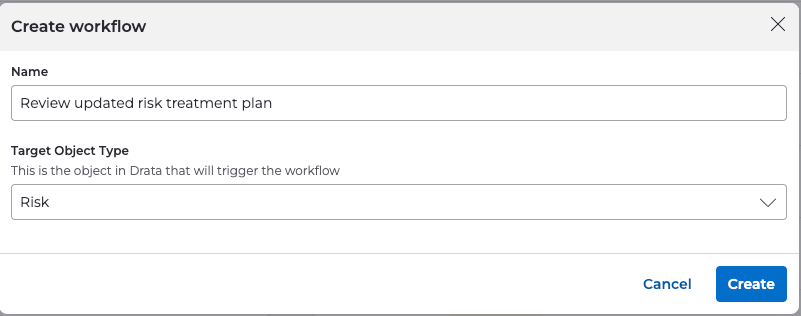
1. Create the Workflow
- Navigate to Settings → Workflows .
- Select Create Workflow .
-
Configure:
-
Name:
Review updated risk treatment plan -
Object Type:
Risk
-
Name:
2. Define the Workflow Scope
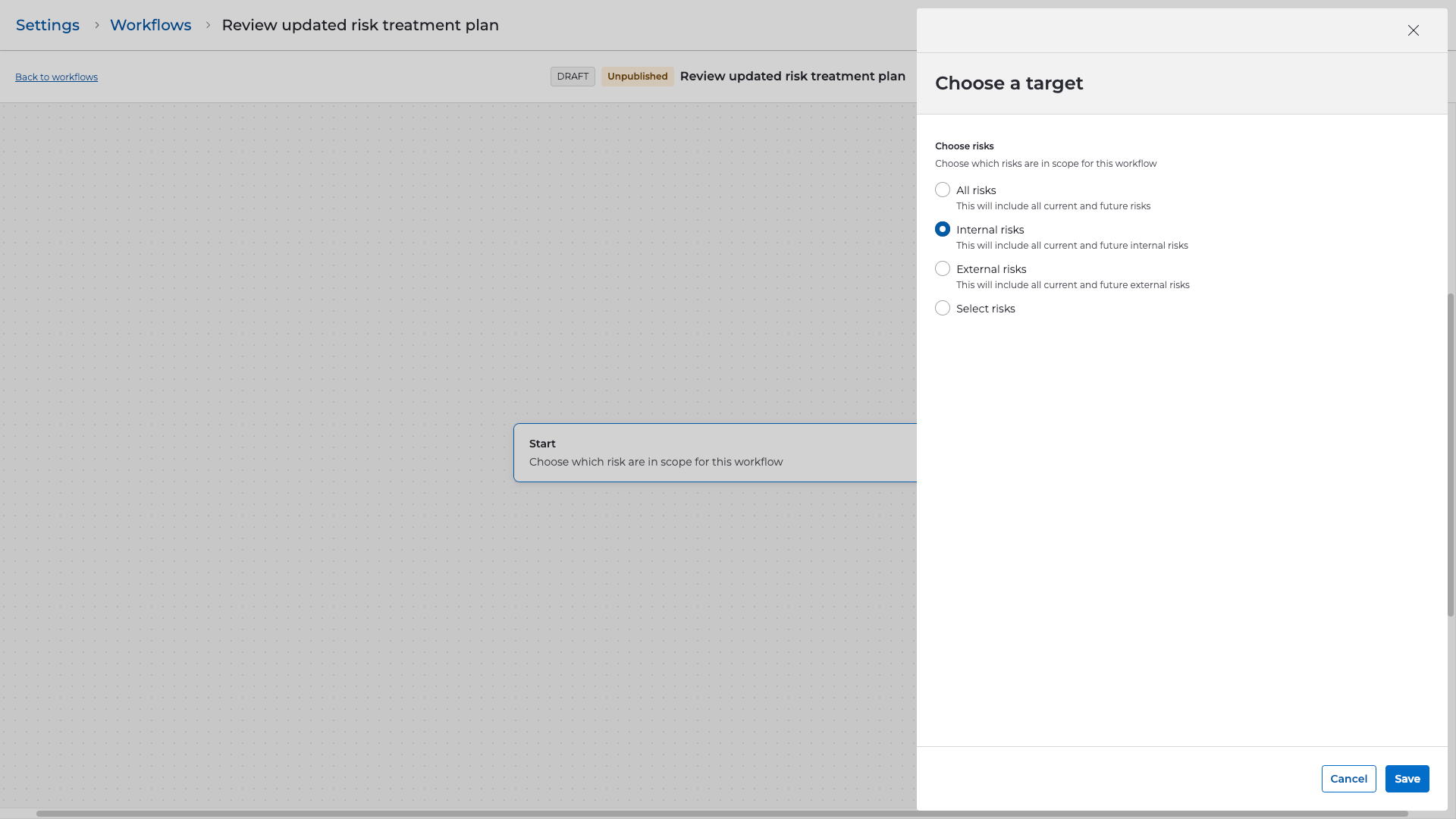
- Under Start , select All risks .
- Click Continue .
3. Select the Trigger
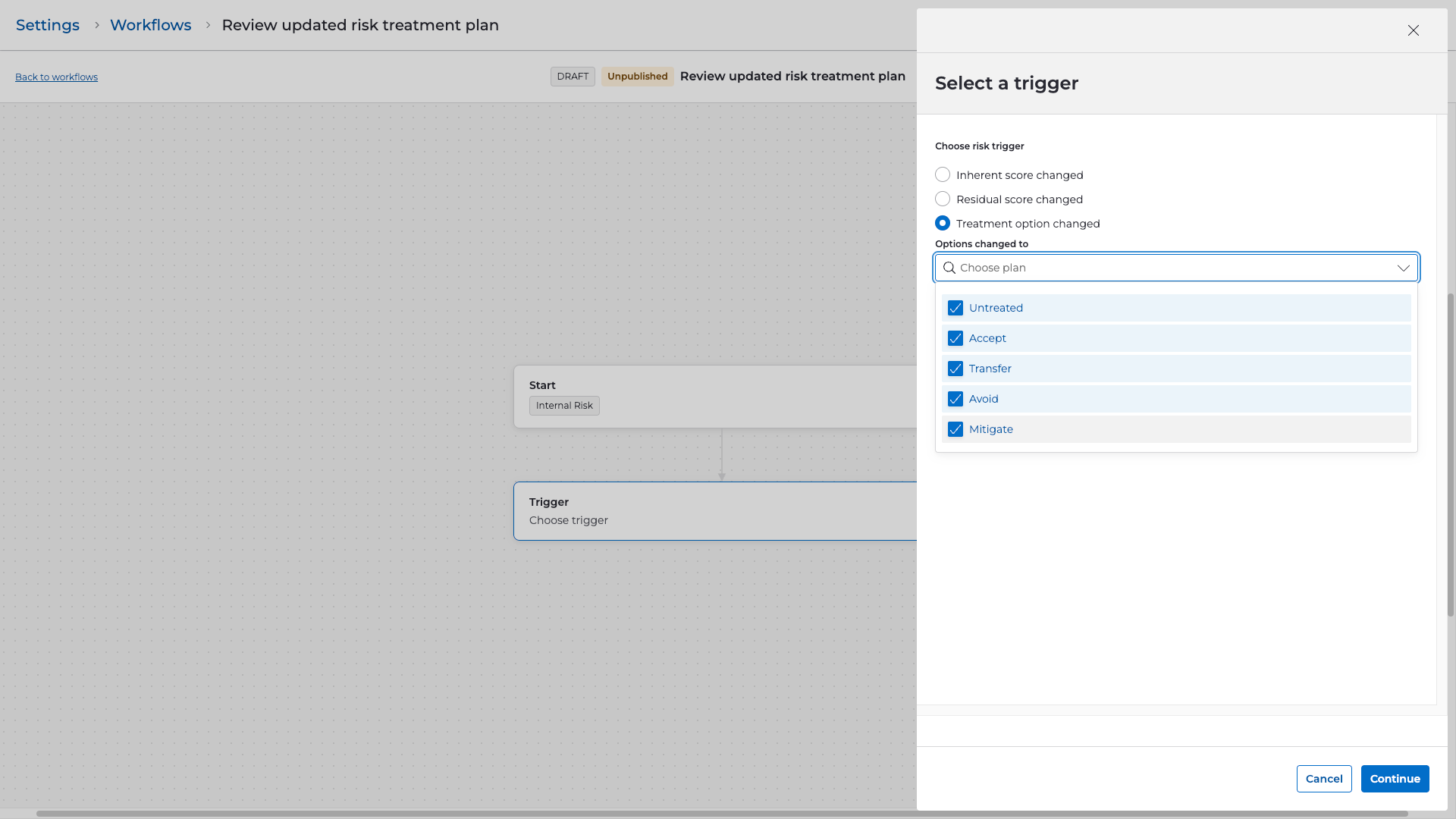
- Choose Treatment option changed as the trigger.
- Select which treatment option changes should initiate this workflow (e.g., Any change , or specific transitions like Accept → Mitigate ).
4. Add Steps
Create Task
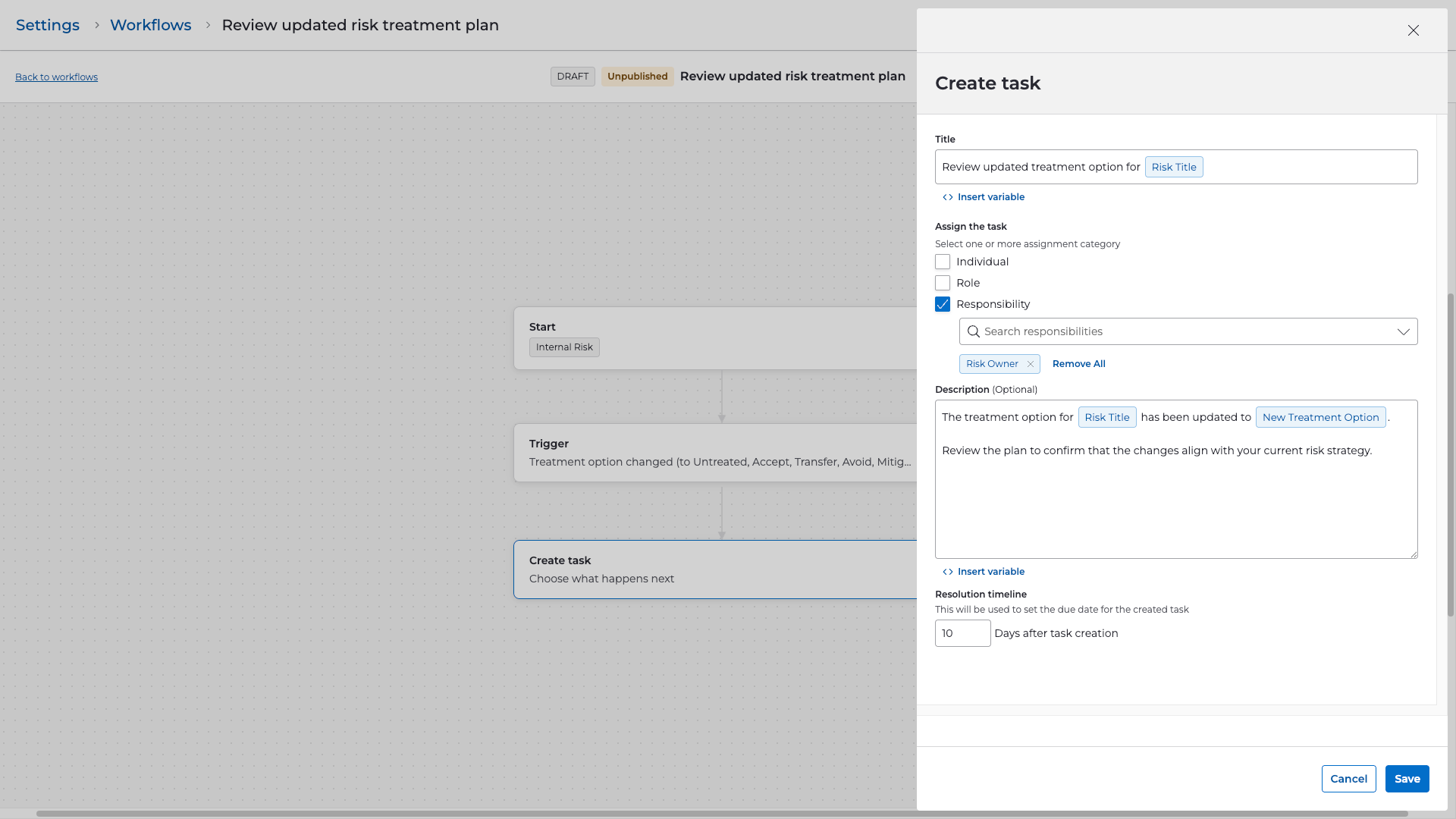
- Add a Create task step.
-
Configure the task details:
-
Title:
Review updated treatment plan for {{risk_name}} - Description:
The treatment option for {{risk_name}} has been updated. Previous Option: {{old_treatment_option}} New Option: {{new_treatment_option}} Please review the updated treatment plan and determine if further mitigation, documentation, or approval is required.-
Assigned To:
- Risk Owner
- Risk Reviewer
- Or a designated role (e.g., Admin, Security Team)
- Due Date: Set a reasonable timeframe (e.g., 5–7 days from creation).
-
Title:
Send Notification (Email Example)
To notify additional stakeholders (e.g., Risk Committee):
- Add a Send notification step.
-
Select a method:
- Slack message
- Microsoft Teams message
- For this example, configure Email .
- Example subject and body:
Subject:
Risk treatment plan updated: {{risk_name}}
Body:
The treatment plan for {{risk_name}} has been updated.

Old Treatment Option: {{old_treatment_option}}
New Treatment Option: {{new_treatment_option}}

A task has been created for follow-up review. Please take any required action.
5. Review and Publish
-
Review:
- Scope: All risks
- Trigger: Treatment option changed
- Steps: Task creation , plus optional notifications
- Select Publish to activate.
- Save as Draft if internal review is required.
Validation & Testing
To ensure proper setup:
- Modify the treatment option of a test risk .
- Navigate to Settings → Workflows → Run History to verify the workflow fired.
-
Confirm:
- A task was created and assigned correctly
- Any notifications were delivered
- Adjust task details or messaging as needed.