Notify Current Employees When Non-Compliant / Failure
Objective
Automatically alert employees when they become non-compliant with required training, policies, or onboarding actions.
This workflow ensures timely action, clear accountability, and minimizes the risk of missed compliance obligations by notifying personnel as soon as they fall out of compliance.
Prerequisites
Before configuring this workflow, make sure you have:
- Admin or Workspace Manager access, which is required to create and publish workflows.
- Identified the personnel categories you want to monitor (e.g., Security Training, Code of Conduct, Policy Acknowledgements).
-
Confirmed the
communication channel
you'll use:
- Email (always available)
- Slack channel or DM (Slack integration required)
- Microsoft Teams channel (Teams integration required)
Workflow Overview
This workflow sends an automated notification whenever:
- Object Type: Personnel
- Trigger Event: Out of compliance
- Steps Executed: Send notification (email, Slack, or Teams)
Step-by-Step Configuration
1. Create the Workflow
- Navigate to Settings → Workflows .
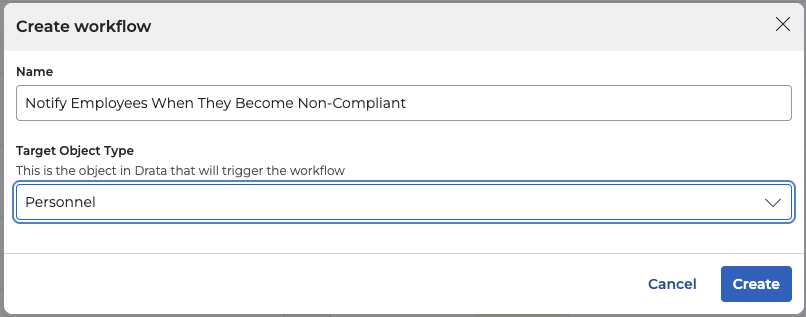
- Select Create Workflow .
- Name the workflow (e.g., Notify Employees When They Become Non-Compliant ).
- Choose Personnel as the object type.
2. Define the Workflow Scope
-
Select which personnel the workflow applies to:
- All personnel , or
- Filter by status if you only want to target active employees.

- Confirm your selection to move to the trigger configuration.
3. Select the Trigger
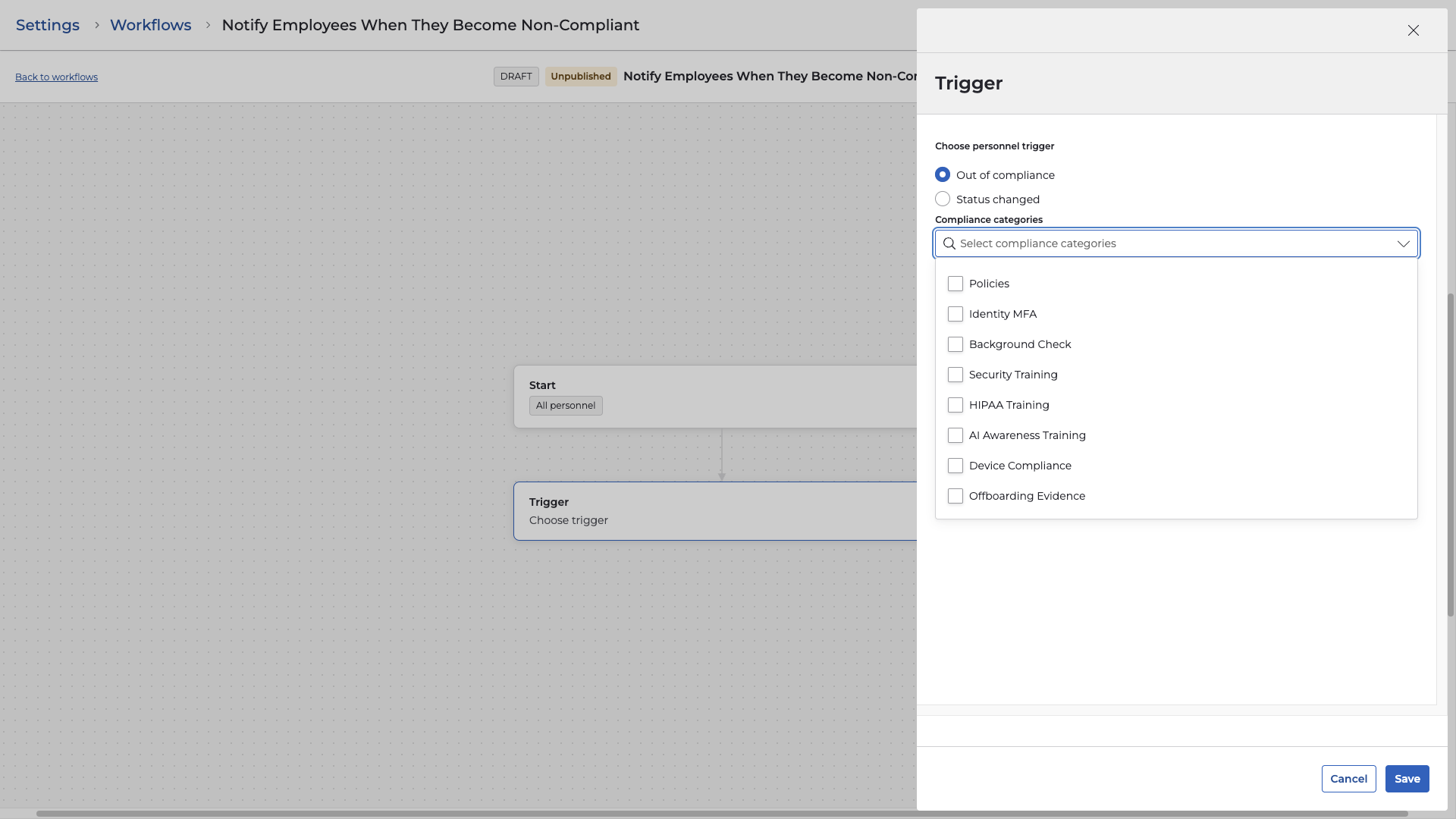
- Choose Out of compliance from the Personnel triggers list.
-
Configure the trigger details:
- Select the Compliance Categories that should fire this workflow (e.g., Security Training).
- Set the number of days the person must be out of compliance before the workflow triggers (e.g., 0 days for immediate notification).
4. Add Steps
Send Notification
-
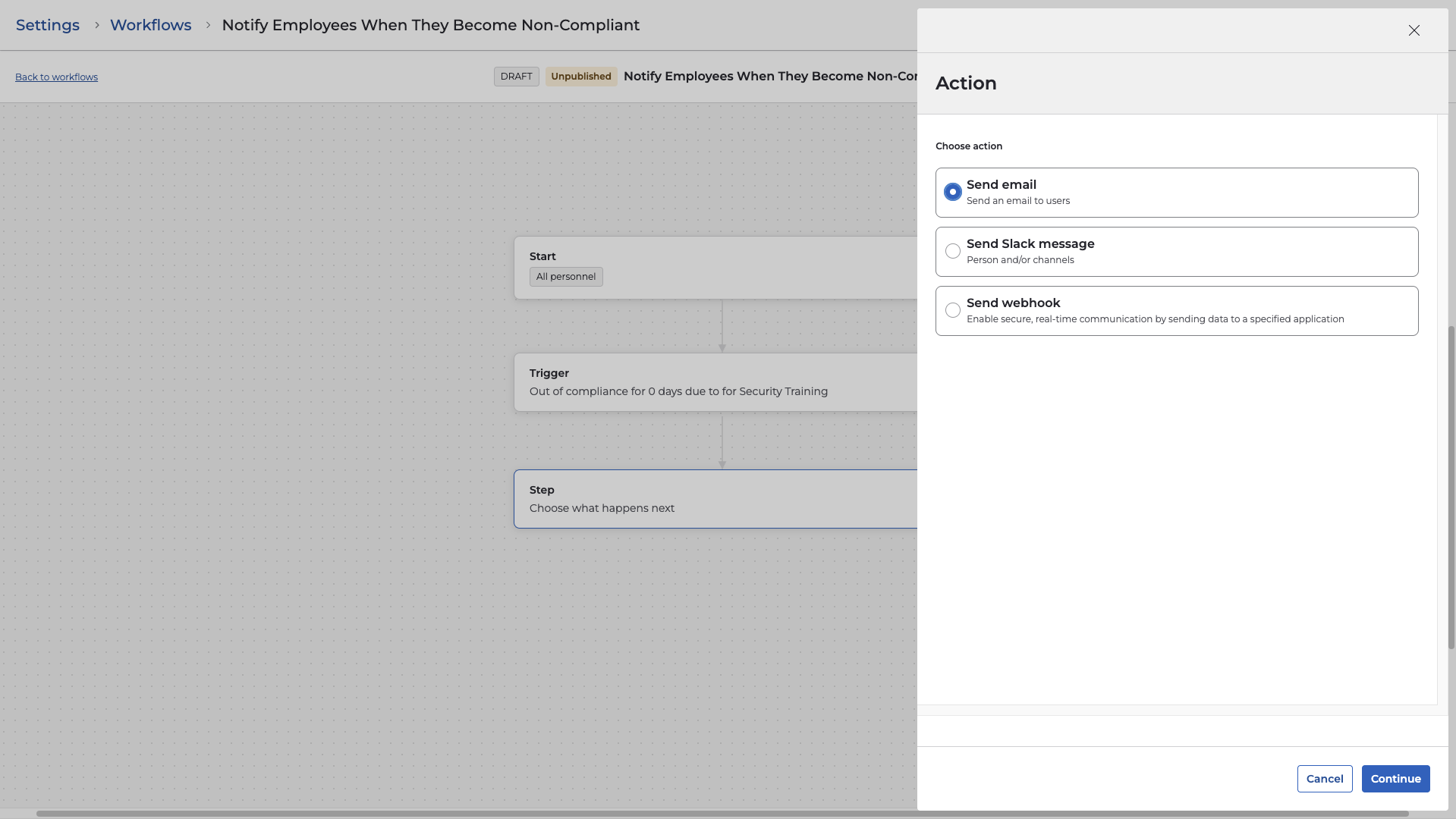
Select a notification method:
Email
,
Slack message
, or
Microsoft Teams message
.
-
Choose the recipient:
- Personnel (the non-compliant employee)
- Optionally add additional recipients such as Admins or managers (the manager option is only available if the HRIS is connected to Drata)
-
Compose the message using dynamic variables for clarity:
- Example Subject: You Are Out of Compliance With a Required Item
- Example Message:
Hi {{personnel_name}},

Our system has detected that you are out of compliance for:
- Category: {{personnel_categories_out_of_compliance}}

Please complete the outstanding requirement as soon as possible to regain compliance status.

Thank you,
Compliance Team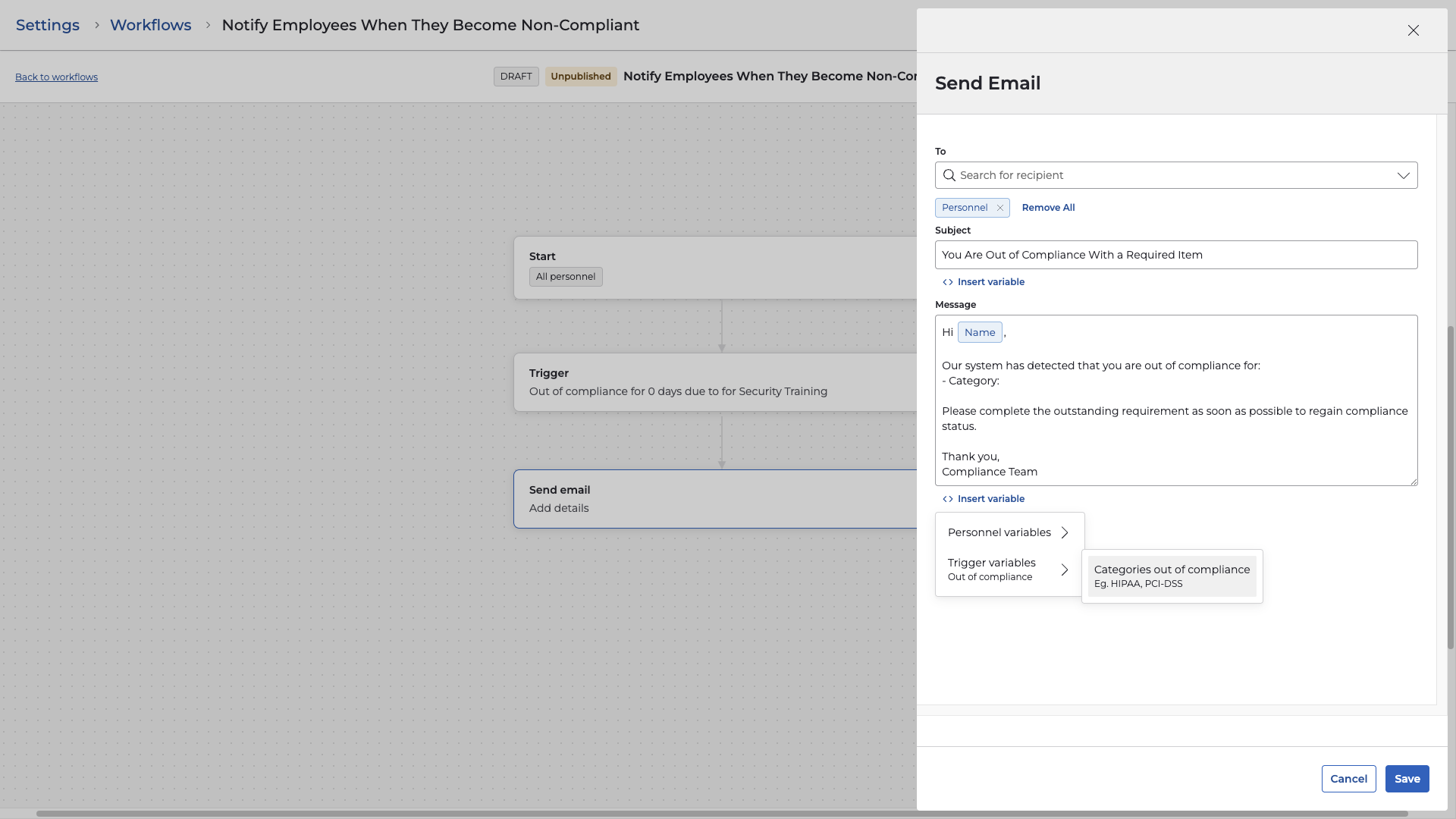
- Save the step.
- Optional : Add additional in-parallel steps, e.g., Send Slack message to notify the user over Slack.
5. Review and Publish
- Review the workflow's scope, trigger, and notification content.
- Select Publish to activate the workflow.
- Optionally, save as a draft if you need to review the messaging with stakeholders.
Validation & Testing
To confirm the workflow is functioning properly:
- Simulate the trigger by marking a test employee as out of compliance or adjusting a compliance item.
- Navigate to Workflows → Run History to confirm the workflow fired.
- Verify the email, Slack, or Teams notification was received by the intended user.
- Adjust messaging or recipients as necessary based on validation.