Notify and Create Task When Risk Residual Score Changes to a Higher Level
Objective
Automatically notify stakeholders and create a follow-up task whenever a risk's residual score increases (e.g., from Medium → High). This workflow helps ensure that elevated risks receive timely review, improving risk visibility and supporting proactive remediation in your risk management program.
Prerequisites
Before setting up this workflow, ensure:
- You have Admin or Workspace Manager permissions in Drata.
- You have identified which risks should be monitored for score changes.
- You know the score thresholds used in your organization (labels may be customized).
-
Your notification channels are ready:
- Email (always available)
- Slack (Slack integration required)
- Microsoft Teams (Teams integration required)
Workflow Overview
This workflow executes when:
- Object Type: Risk
- Scope: All risks
- Trigger Event: Residual score changed
- Trigger Condition: New residual score meets or exceeds selected threshold
-
Actions:
- Send notification (Email, Slack, or Teams)
- Create task for risk owner or designated role
Step-by-Step Configuration
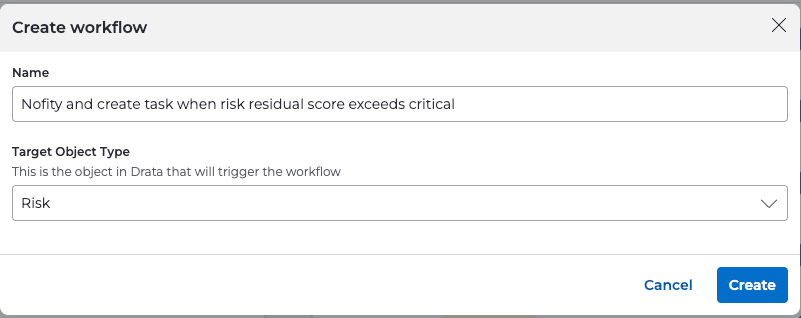
1. Create the Workflow
- Navigate to Settings → Workflows .
- Select Create Workflow .
-
Configure:
-
Name:
Notify and create task when risk residual score changes to a higher level -
Object Type:
Risk
-
Name:
2. Define the Workflow Scope
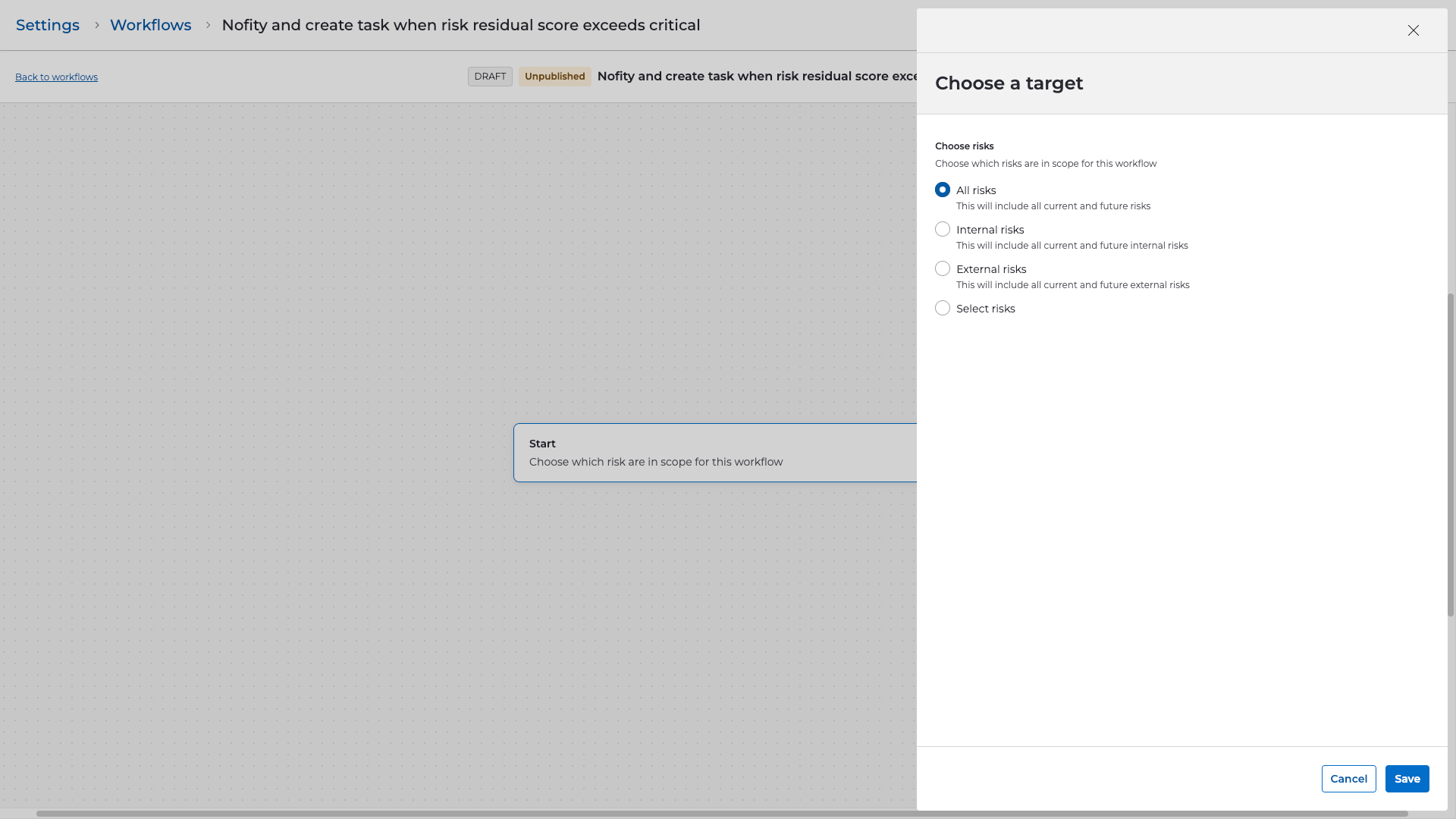
- Under Start , set scope to All risks .
- Click Continue to proceed.
3. Select the Trigger
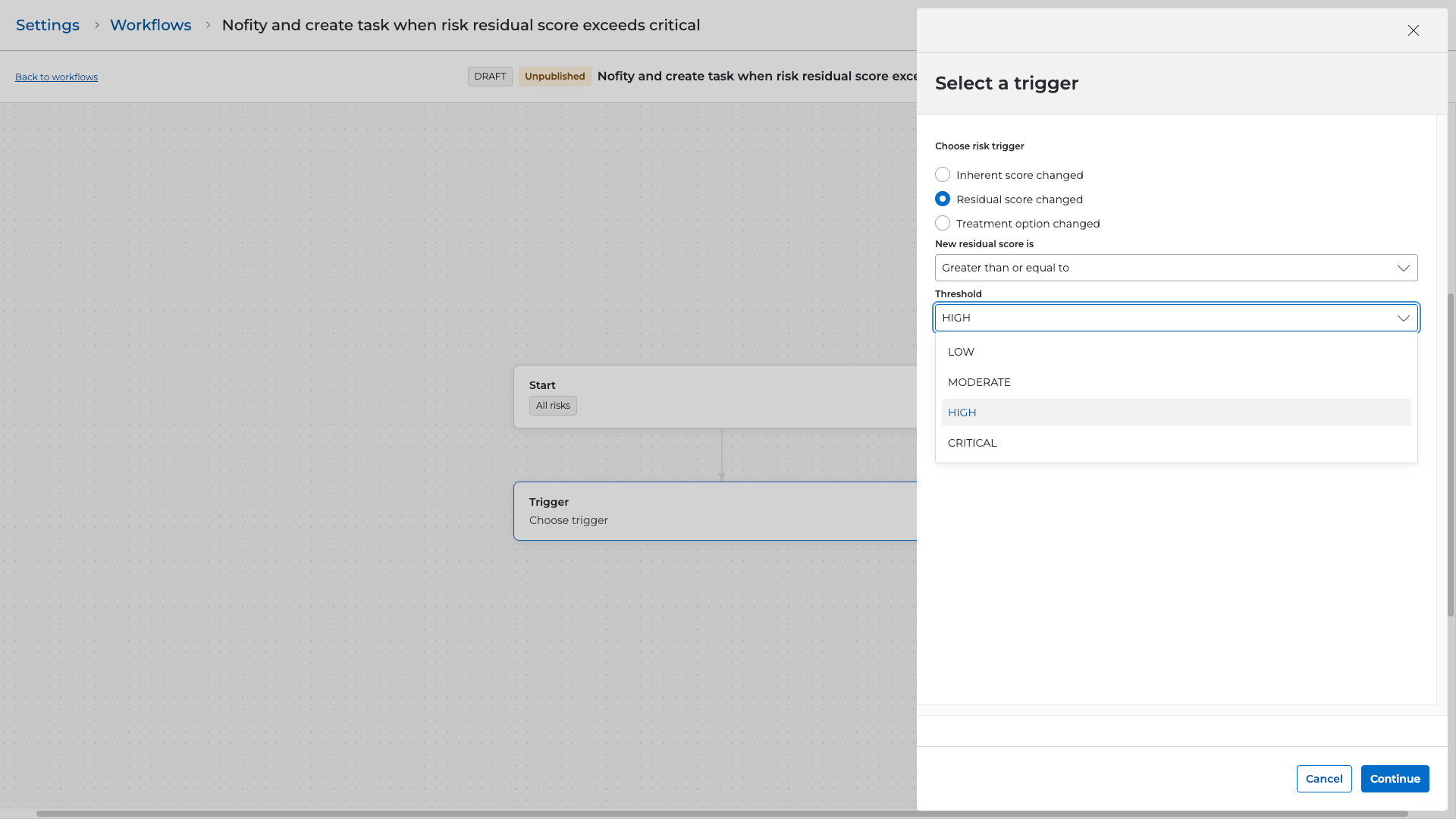
- Choose Residual score changed as the trigger.
-
Define the condition:
- Under New score is , choose the threshold you want to monitor (e.g., High , Critical ).
- Configure the operator (e.g., Greater than or equal to ).
This ensures the workflow only triggers when the score increases into an elevated category.
4. Add Steps
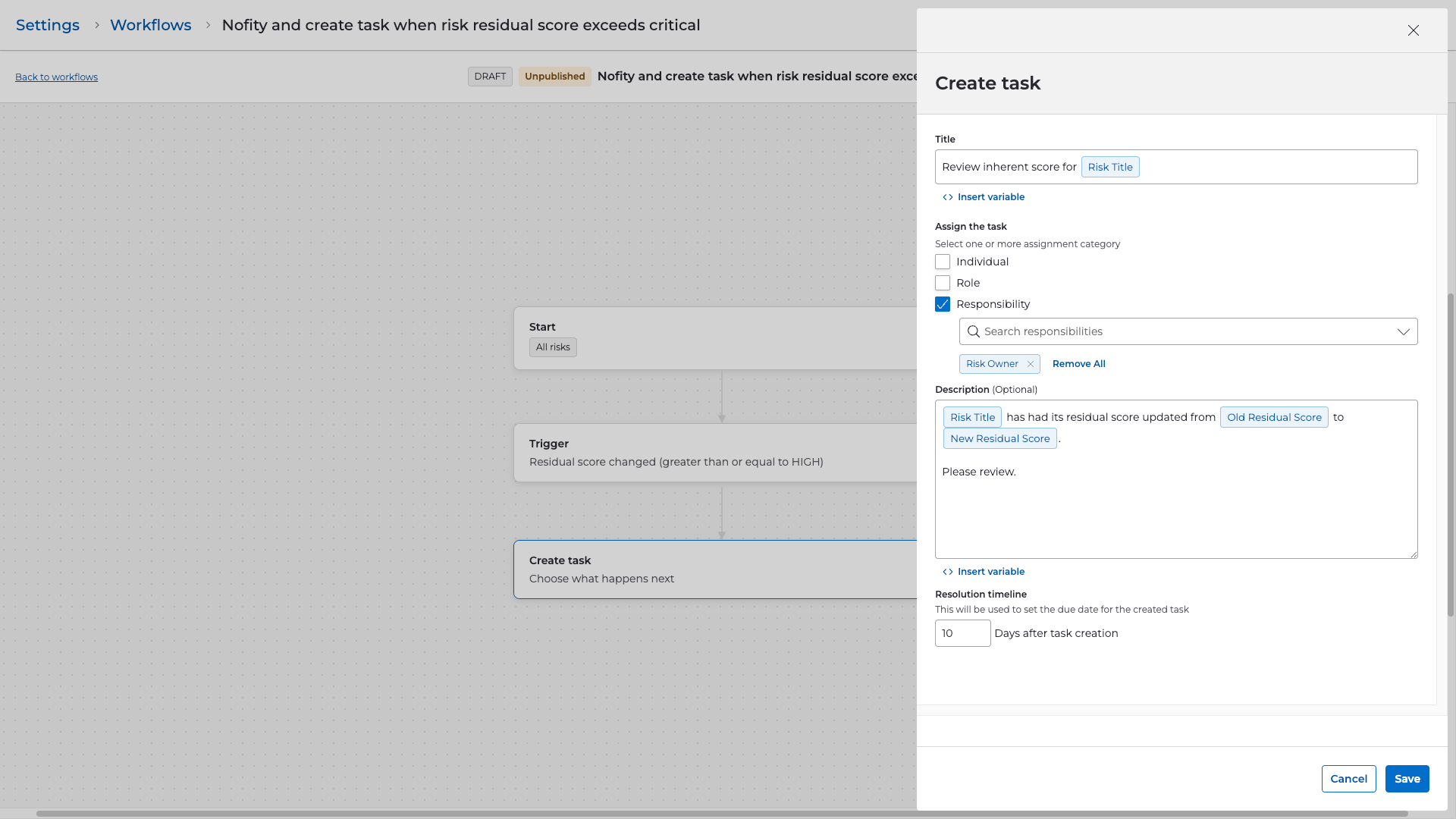
Create Task
- Add a Create task step.
-
Configure the task:
-
Title:
Review elevated residual risk score for {{risk_name}} - Description:
The residual score for {{risk_name}} has increased to {{new_residual_score_value}}. Please review the risk, evaluate required mitigation, and determine next steps.-
Assign to:
- Risk Owner , or
- A specific user or role (e.g., Admin, Risk Manager)
- Set a due date (e.g., 5 days from task creation ).
-
Title:
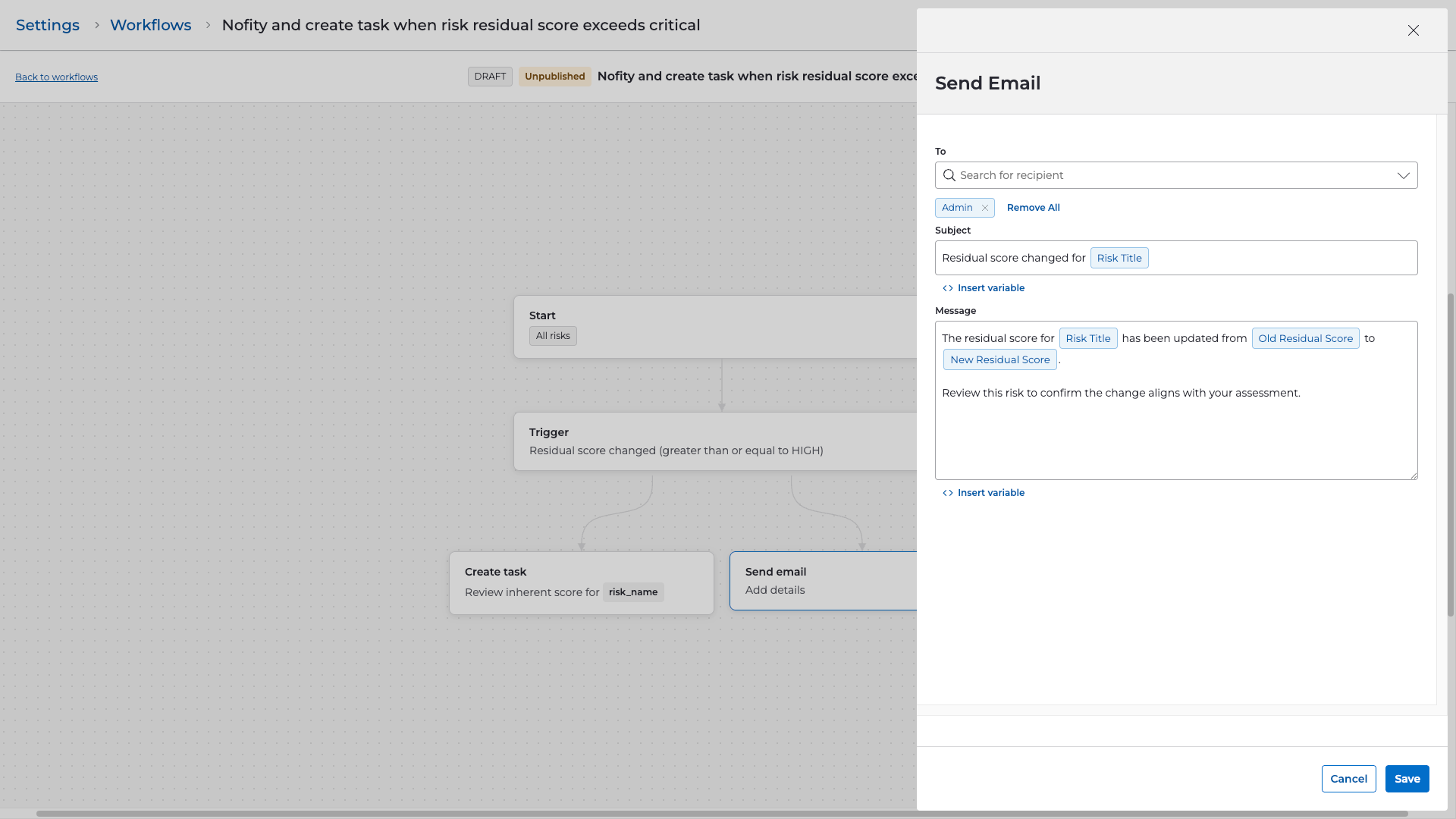
Send Notification (Email Example)
- Add a Send notification step.
-
Select a delivery method:
- Slack
- Microsoft Teams
- For this example, configure Email .
-
Choose recipient(s), such as:
- Risk Owner
- Admin
- Security Team distribution list
-
Example Email Subject:
Residual risk score elevated for {{risk_name}} -
Example Email Body:
The residual score for {{risk_name}} has increased.

Previous Score: {{old_residual_score_value}}
New Score: {{new_residual_score_value}}

Please review the task created for this risk to determine required next steps.
5. Review and Publish
-
Review the workflow details:
- Scope: All risks
- Trigger: Residual score changed → threshold condition
- Steps: Task creation + notification
- Select Publish to activate the workflow.
- Save as Draft if stakeholder review is required.
Validation & Testing
To confirm the workflow is working properly:
- Modify a test risk so its residual score crosses the monitored threshold.
- Go to Settings → Workflows → Run History to confirm the workflow executed.
-
Verify:
- The task was created and assigned correctly.
- The notification email was delivered to the intended recipients.
- Iterate message content or task details as needed.