Notify Control Owners When Evidence Is Unlinked From Their Control
Objective
Automatically notify control owners when existing evidence is unlinked from one of their controls. This workflow helps owners quickly assess whether the removal was intentional, prevents gaps in documentation, and supports continuous audit readiness.
Prerequisites
Before building this workflow, ensure:
- You have Admin or Workspace Manager permissions.
- You know which controls require monitoring for evidence removal.
-
Your notification channels are available:
- Email (always available)
- Slack message (Slack integration required)
- Microsoft Teams message (Teams integration required)
Workflow Overview
This workflow runs when:
- Object Type: Evidence
- Scope: All manual evidence
- Trigger Event: Evidence unlinked from a control
- Action: Notify control owners of the unlinked evidence
Step-by-Step Configuration
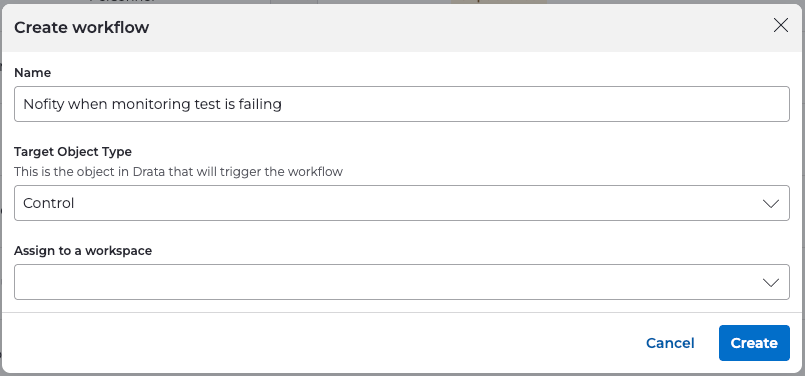
1. Create the Workflow
- Navigate to Settings → Workflows .
- Select Create Workflow .
-
Configure:
-
Name:
Notify control owners when evidence is unlinked from their control -
Object Type:
Evidence
-
Name:
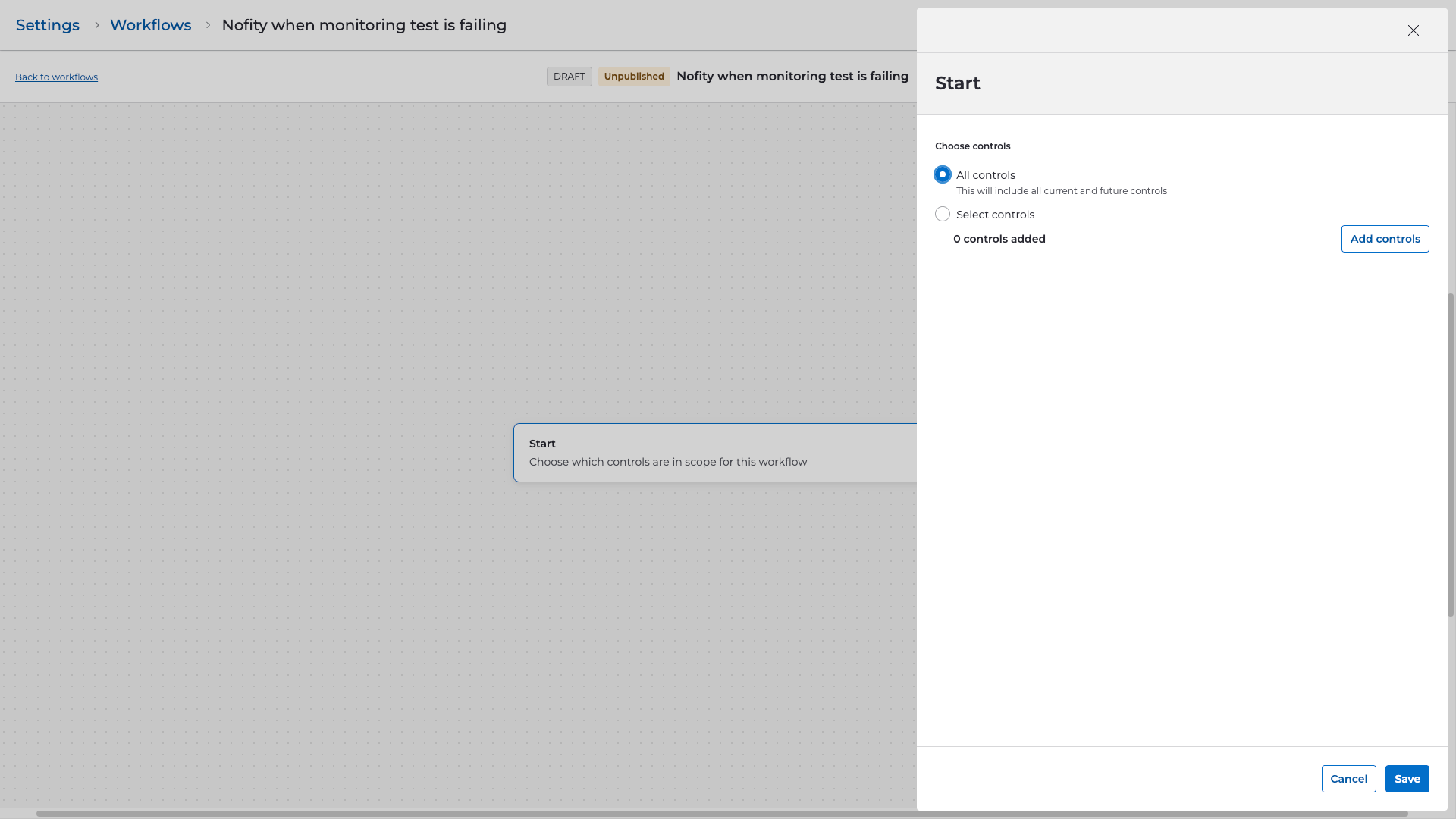
2. Define the Workflow Scope
- Under Start , select All manual evidence .
- Select Continue .
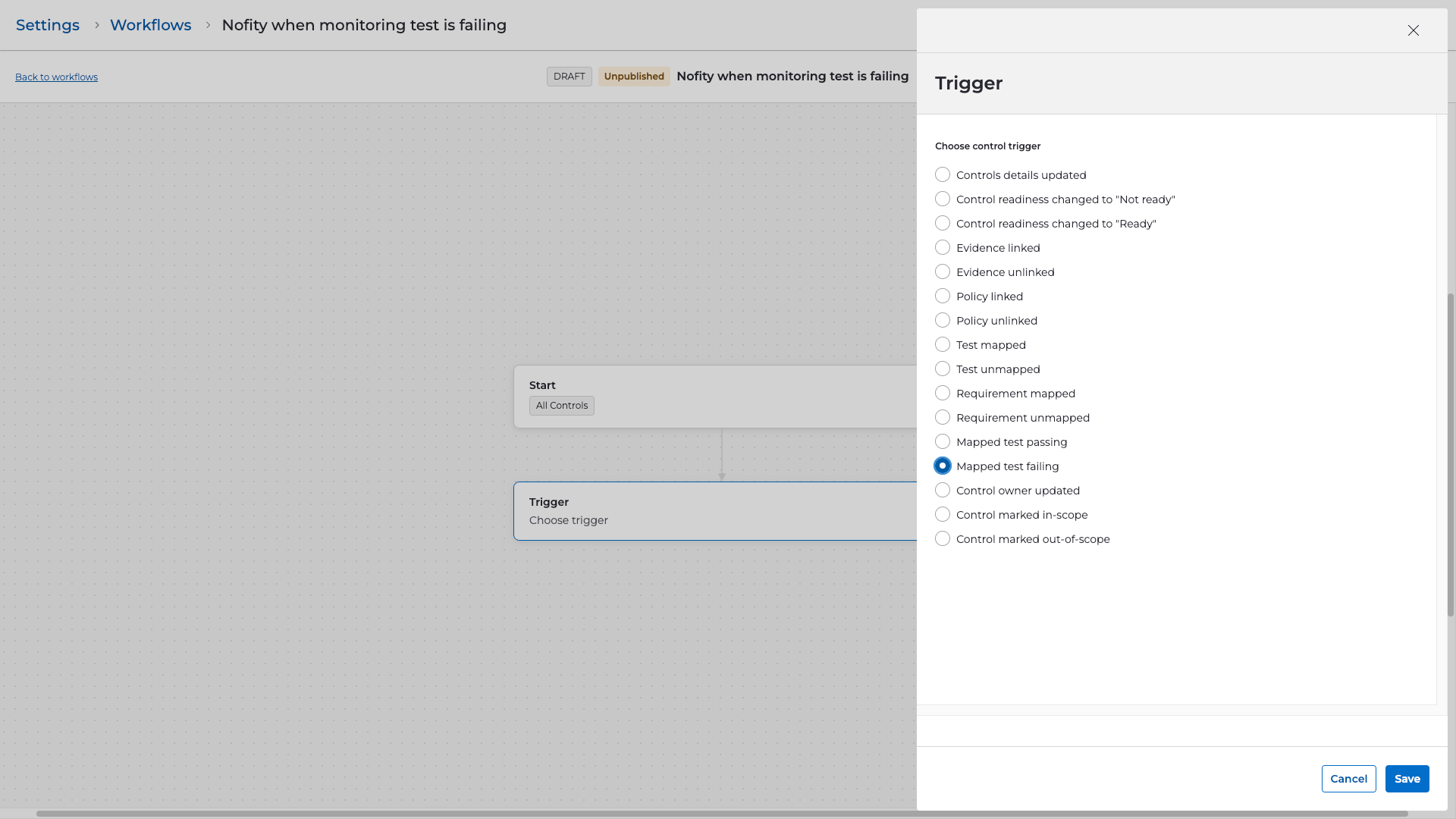
3. Select the Trigger
- Choose Evidence unlinked from a control as the trigger.
- This workflow fires whenever an existing evidence item is removed from a control.
4. Add Steps
Send Notification (Email Example)
- Add a Send notification step.
-
Choose a communication channel:
- Slack message
- Microsoft Teams message
- For example purposes, configure Email .
- Set Control Owner as the recipient.
-
Include dynamic variables such as:
-
{{evidence_name}} -
{{evidence_unlinked_control_name}} -
{{evidence_unlinked_control_on}} -
{{evidence_unlinked_control_by}}
-
Example Email Subject:
Evidence unlinked from your control: {{evidence_name}}
Example Email Body:
Hello,

The evidence item "{{evidence_name}}" has been unlinked from control "{{evidence_unlinked_control_name}}".

Unlinked on: {{evidence_unlinked_control_on}}
Unlinked by: {{evidence_unlinked_control_by}}

If this change was not expected, please review and take appropriate action.

Thank you,
Compliance Team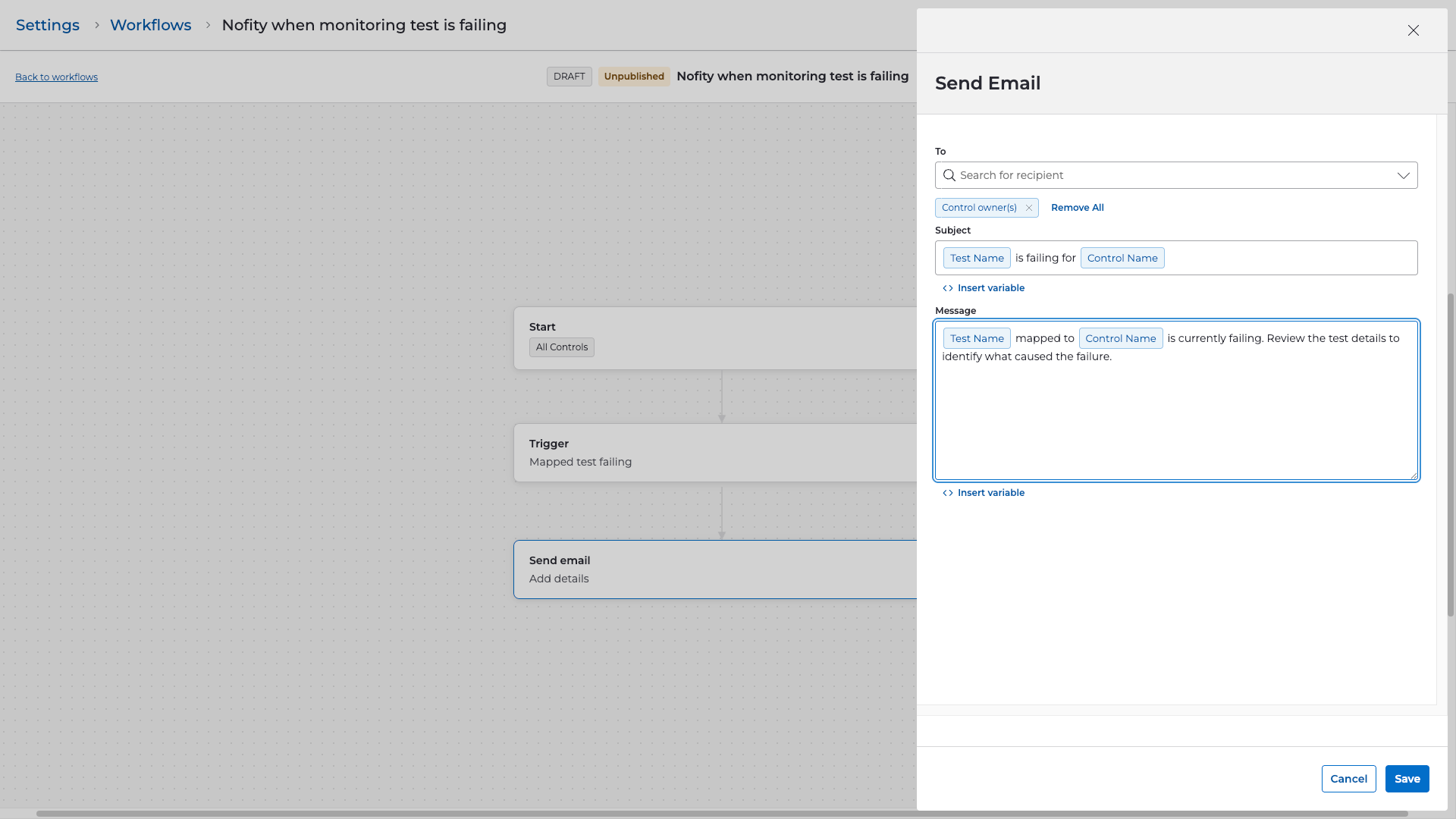
5. Review and Publish
-
Review your selections:
- Scope: All manual evidence
- Trigger: Evidence unlinked from a control
- Step(s): Notification to control owners
- Select Publish to activate the workflow.
- Save as Draft if more internal review is required.
Validation & Testing
To ensure this workflow operates correctly:
- Take a test evidence item and unlink it from a control.
- Go to Settings → Workflows → Run History to confirm the workflow triggered.
- Check that the control owner received the notification.
- Adjust message content or assign additional recipients as needed.