Notify Admin When Personnel Is Out of Compliance by 5 Days
Objective
Automatically alert Admins when any employee has been out of compliance for 5 days across required trainings, policy acknowledgements, or other compliance-related obligations. This workflow improves visibility into long-standing compliance gaps and enables timely follow-up before risks escalate.
Prerequisites
Before configuring this workflow, ensure you have:
- Admin or Workspace Manager permissions in Drata.
- Identified which compliance categories you want to monitor (e.g., Security Training, Policies, MFA, Device Compliance).
-
Verified which notification channels are available in your environment:
- Email (always available)
- Slack message (Slack integration required)
- Microsoft Teams message (Teams integration required)
Workflow Overview
This workflow notifies Admins when:
- Object Type: Personnel
- Scope: All personnel
- Trigger Event: Out of compliance
- Duration Threshold: 5 continuous days out of compliance
- Action: Send notification (Email, Slack, or Teams)
Step-by-Step Configuration
1. Create the Workflow
- Navigate to Settings → Workflows .
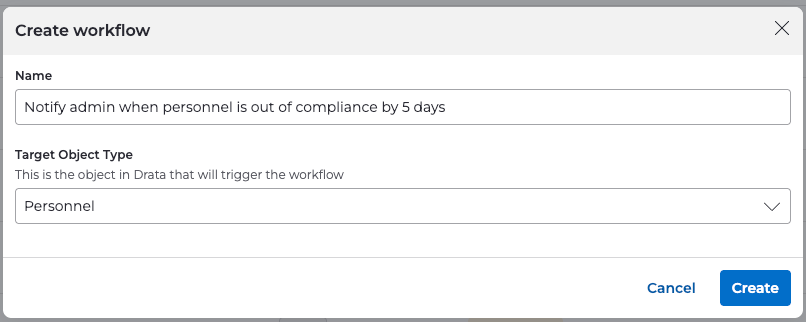
- Select Create Workflow .
-
Configure:
-
Name:
Notify admin when personnel is out of compliance by 5 days -
Object Type:
Personnel
-
Name:
2. Define the Workflow Scope
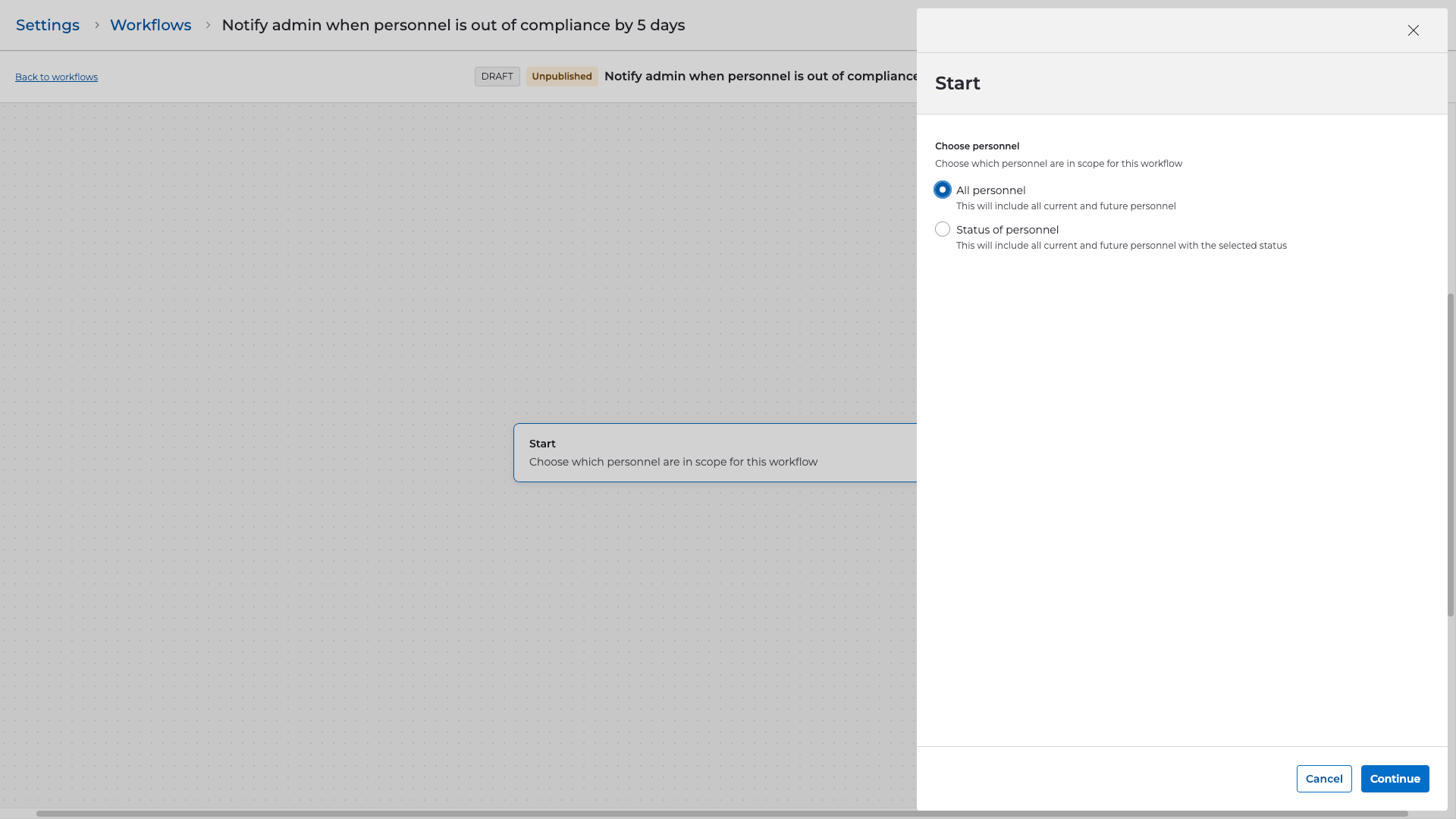
- In the Start step, set the scope to All personnel .
- Select Continue .
3. Select the Trigger
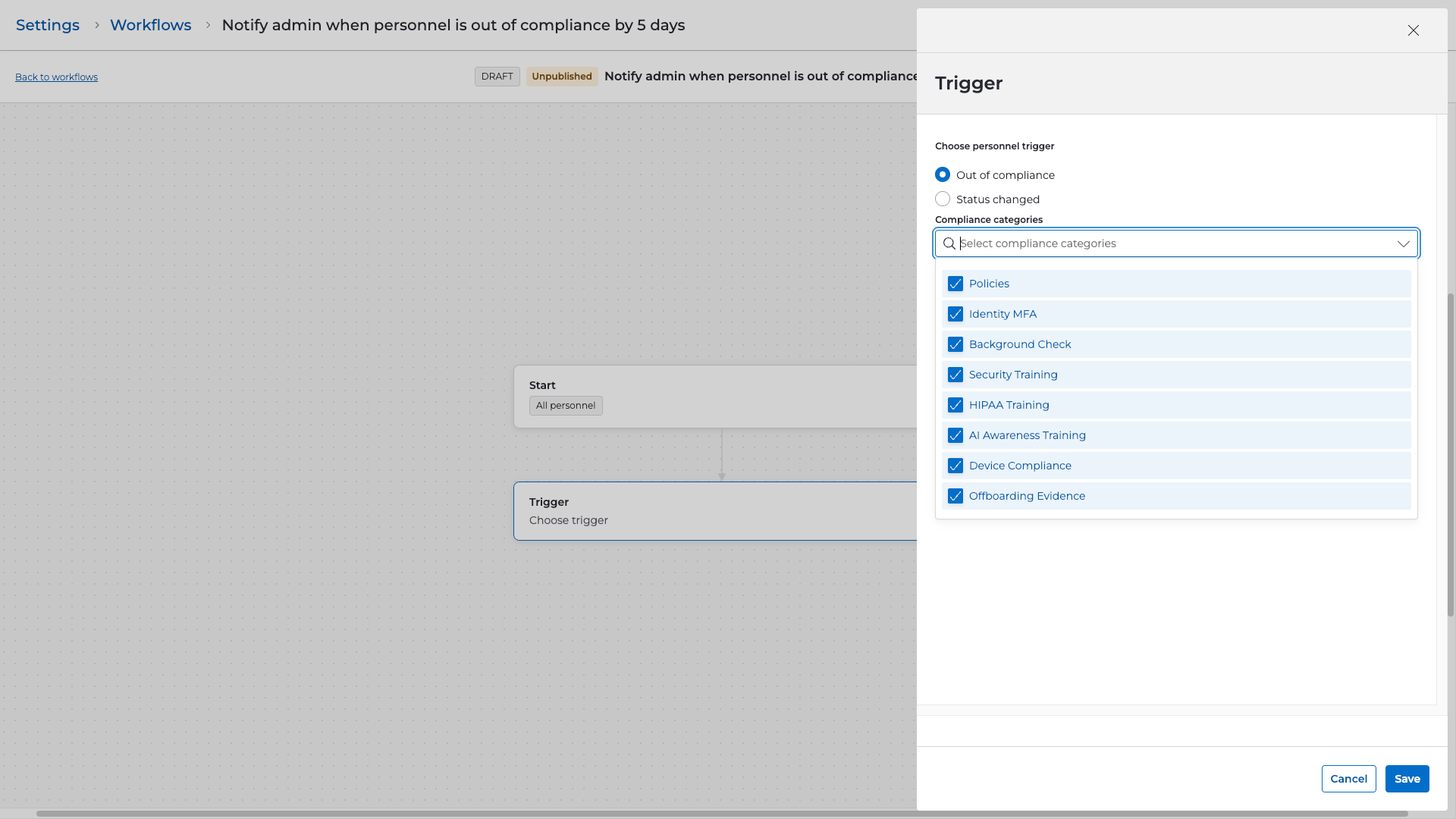
- Choose Out of compliance as the personnel trigger.
- Select the compliance categories you want this workflow to monitor.
- Set the number of days out of compliance to 5 so the workflow triggers only when the issue persists for five days.
4. Add Steps
Send Notification (Email Example)
- Add a Send notification step.
-
Select a notification method:
- Slack message
- Microsoft Teams message
- For this example, configure Email .
- Set Admin as the recipient.
-
Compose the email using dynamic variables such as:
-
{{personnel_name}} -
{{personnel_categories_out_of_compliance}}
-
Example Email Subject:
{{personnel_name}} out of compliance for 5 days
Example Email Body:
Hi Admin Team,

{{personnel_name}} has been out of compliance for 5 days.

Categories affected:
{{personnel_categories_out_of_compliance}}

Please review their status and take appropriate action.

Thank you,
Compliance Team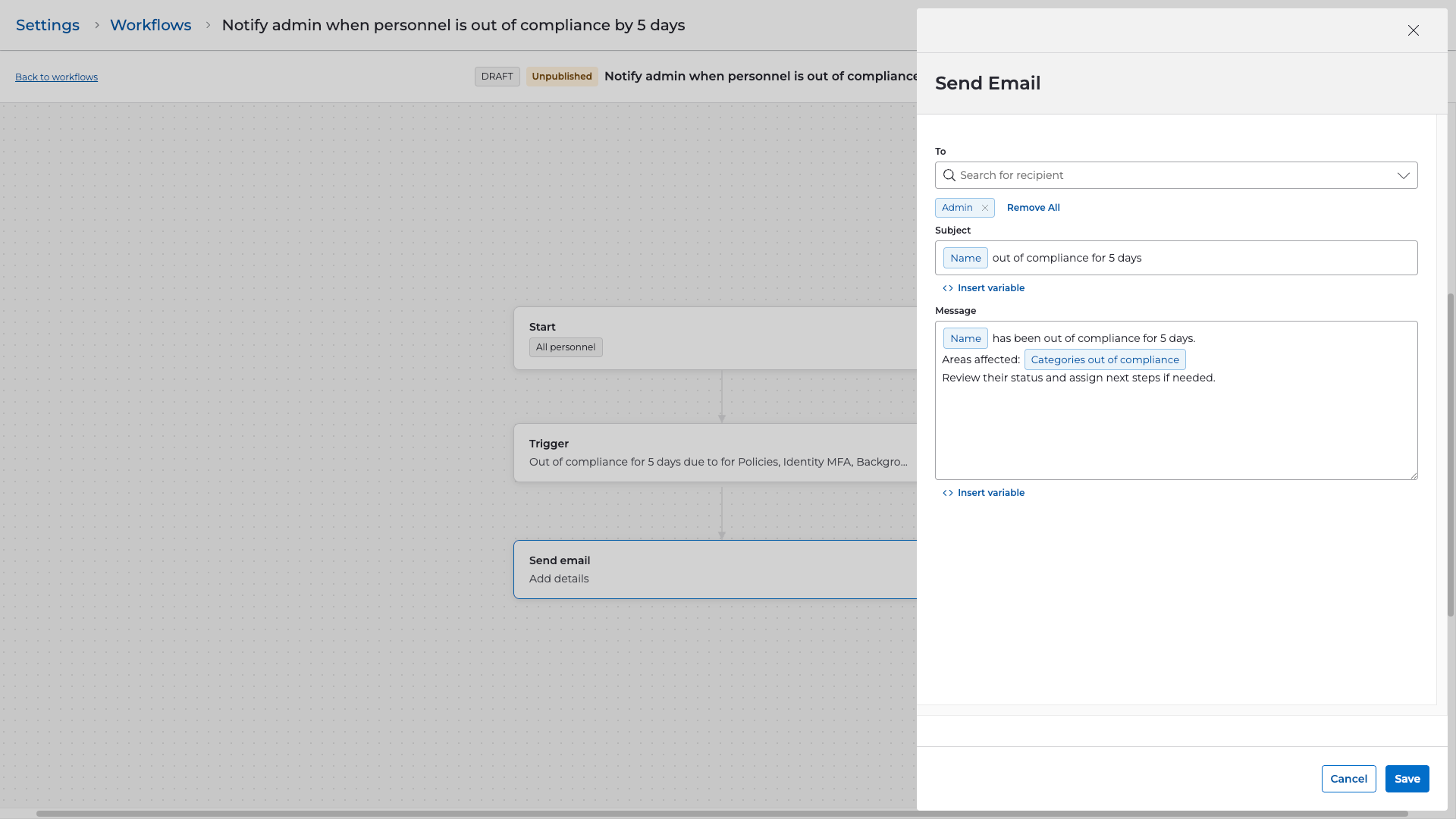
Optional: Add additional notification steps (Slack or Teams) in parallel if your organization uses those channels.
5. Review and Publish
-
Review all workflow settings, including:
- Scope: All personnel
- Trigger: Out of compliance , set to 5 days
- Action: Send notification to Admin
- Select Publish to activate the workflow.
- Alternatively, save as Draft if internal approval is required before activation.
Validation & Testing
To confirm the workflow is working as expected:
- Identify or create a test personnel record and configure it to be out of compliance in one of the selected categories.
- Adjust test data or timing to simulate being out of compliance for 5 days (as appropriate).
- Navigate to Settings → Workflows → Run History to verify that the workflow executed.
- Confirm the Admin received the notification email.
- Refine the subject line, body text, or recipients based on stakeholder feedback.