Create Task and Notify When Control Changes to "Not Ready"
Objective
Automatically alert stakeholders and create an actionable task whenever a control's readiness changes to "Not Ready". This workflow ensures that regressions in control readiness are immediately surfaced and assigned for follow-up—supporting continuous compliance and timely remediation.
Prerequisites
Before configuring this workflow, ensure:
- You have Admin or Workspace Manager permissions.
- You know who should respond when a control becomes not ready (e.g., Control Owner, Admin, Security Team).
-
Notification channels are available:
- Email (always available)
- Slack message (Slack integration required)
- Microsoft Teams message (Teams integration required)
Workflow Overview
This workflow runs when:
- Object Type: Control
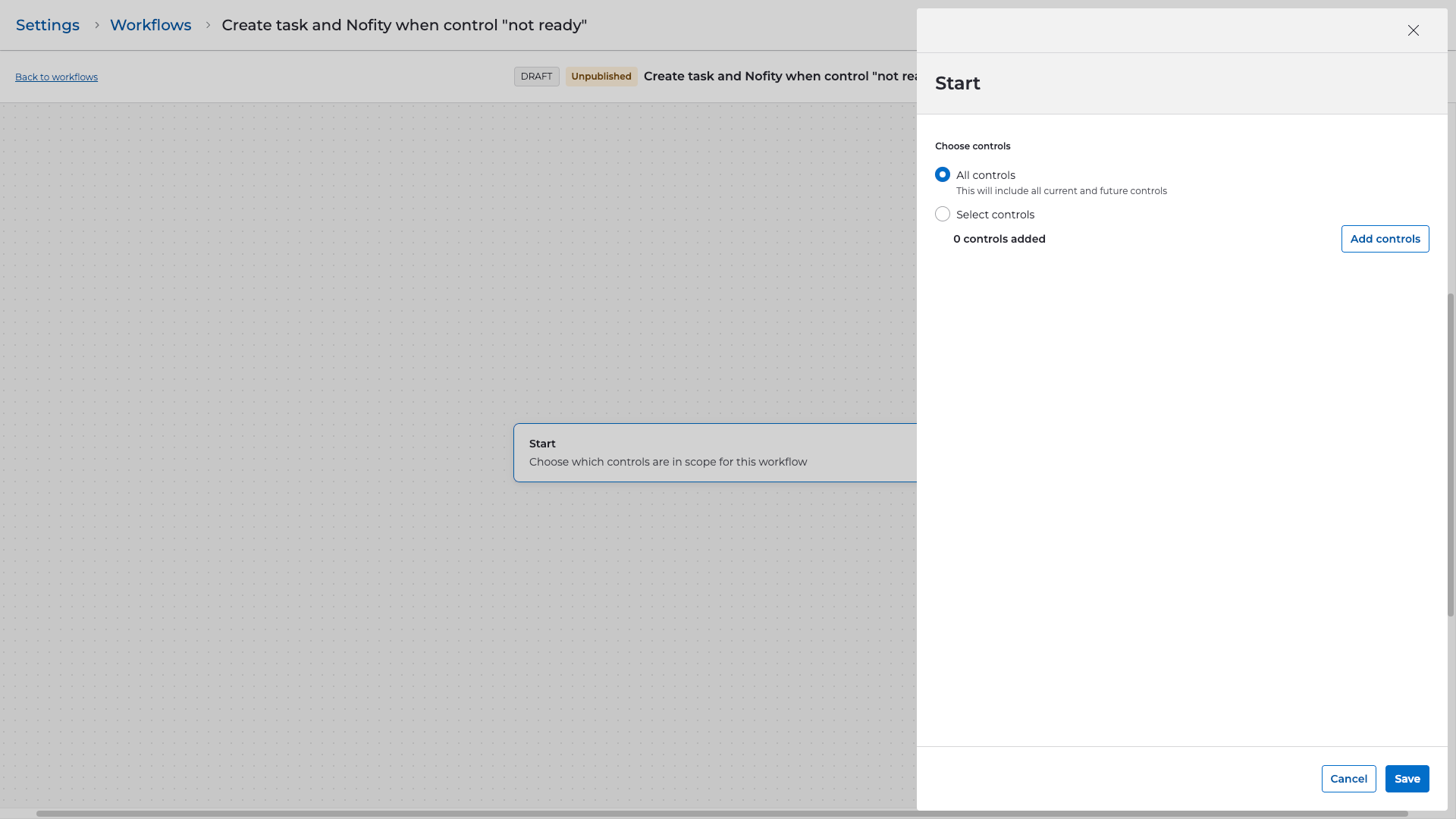
- Scope: All controls
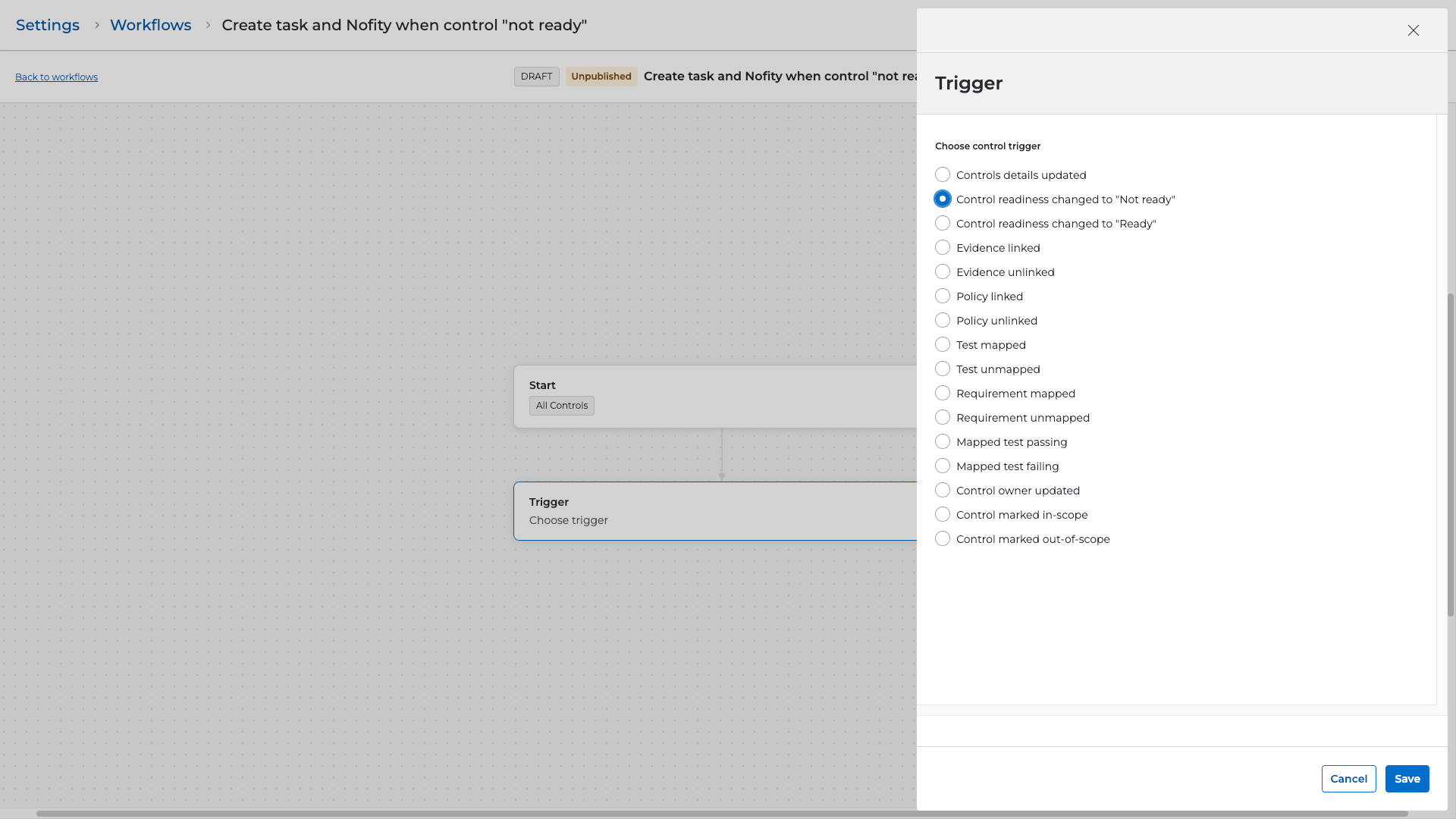
- Trigger Event: Control readiness changed to "Not Ready"
-
Actions:
- Create a task for the appropriate owner
- Send a notification (Email, Slack, or Teams)
Step-by-Step Configuration
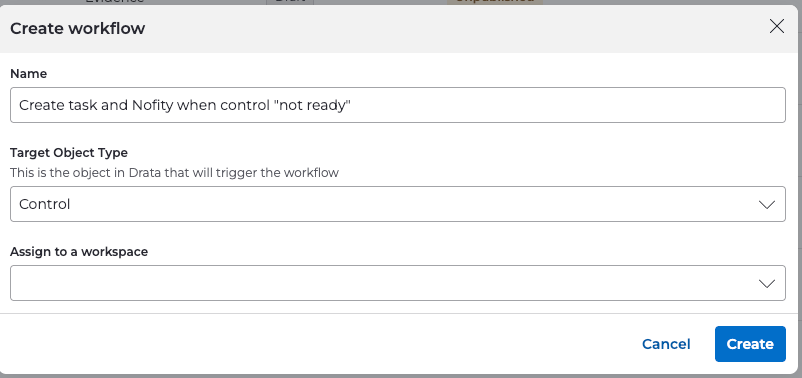
1. Create the Workflow
- Navigate to Settings → Workflows .
- Select Create Workflow .
-
Configure:
-
Name:
Create task and notify when control "not ready" -
Object Type:
Control
-
Name:
2. Define the Workflow Scope
- Set the scope to All controls .
- Select Continue .
3. Select the Trigger
- Choose Control readiness changed to "Not ready" as the trigger.
- This event fires whenever a control's readiness status drops from Ready → Not Ready.
4. Add Steps
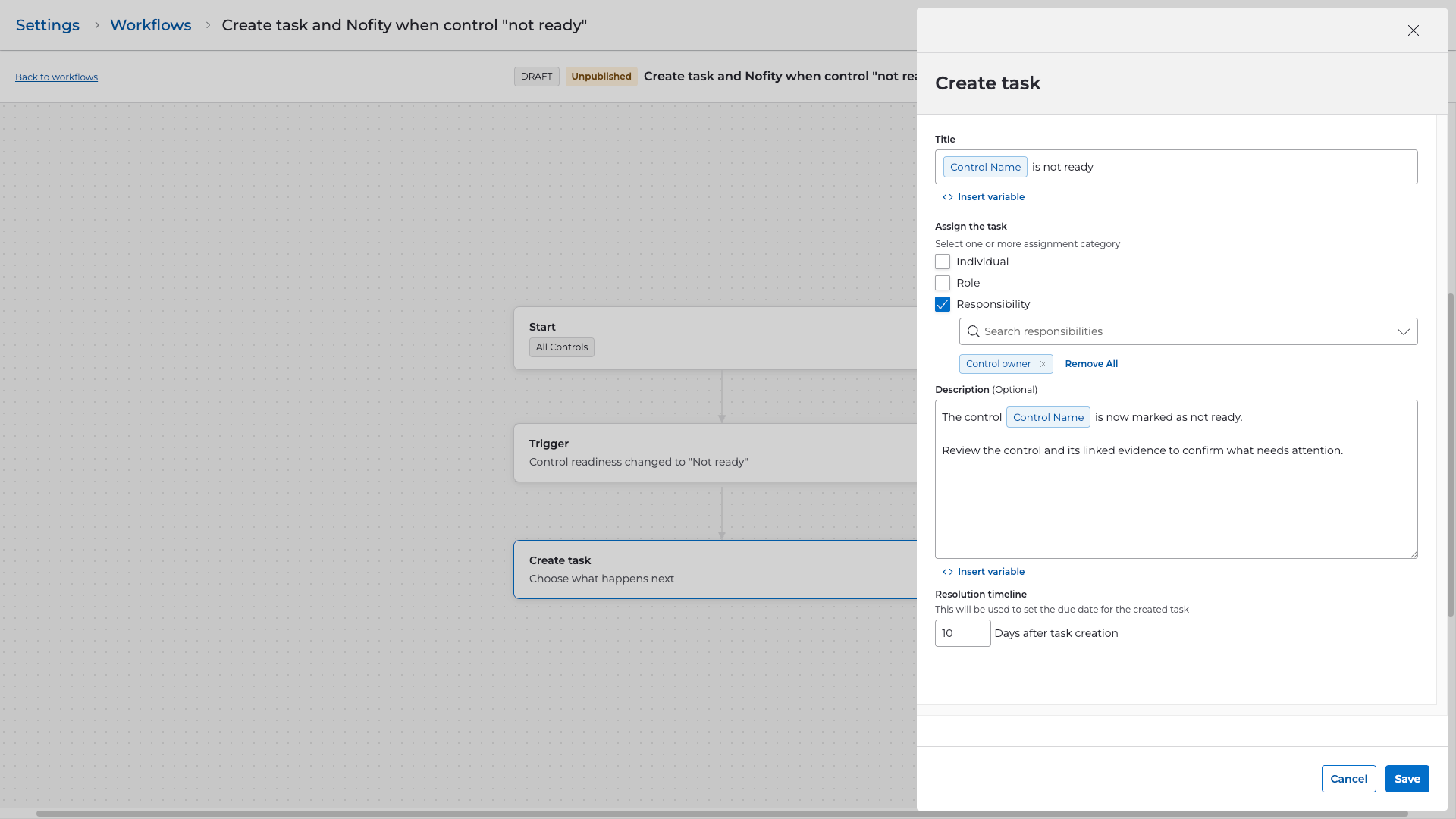
Create Task
- Add a Create task step.
-
Configure the task:
-
Title:
Control marked as not ready: {{control_name}} - Description:
The control "{{control_name}}" has changed to a Not Ready state. Please review this control, identify the underlying issues, and take corrective action.- Assign to:
- Control Owner , or
- Specific role (e.g., Admin, Security Team)
- Due Date: Set an appropriate follow-up timeframe (e.g., 5 days from task creation)
-
Title:
Send Notification (Email Example)
- Add a Send notification step.
-
Select method:
- Slack message
- Microsoft Teams message
- For this example, configure Email .
-
Choose recipient(s), such as:
- Control Owner
- Admin
- Compliance Team
-
Use dynamic variables such as:
-
{{control_name}} -
{{control_readiness}} -
{{date_changed}} -
{{updated_by}}
-
Example Email Subject:
Control moved to Not Ready: {{control_name}}
Example Email Body:
Hello,

The control "{{control_name}}" has changed to a "Not Ready" state.

Date Changed: {{date_changed}}
Updated By: {{updated_by}}

A task has been created for follow-up. Please review and take appropriate action.

Thank you,
Compliance Team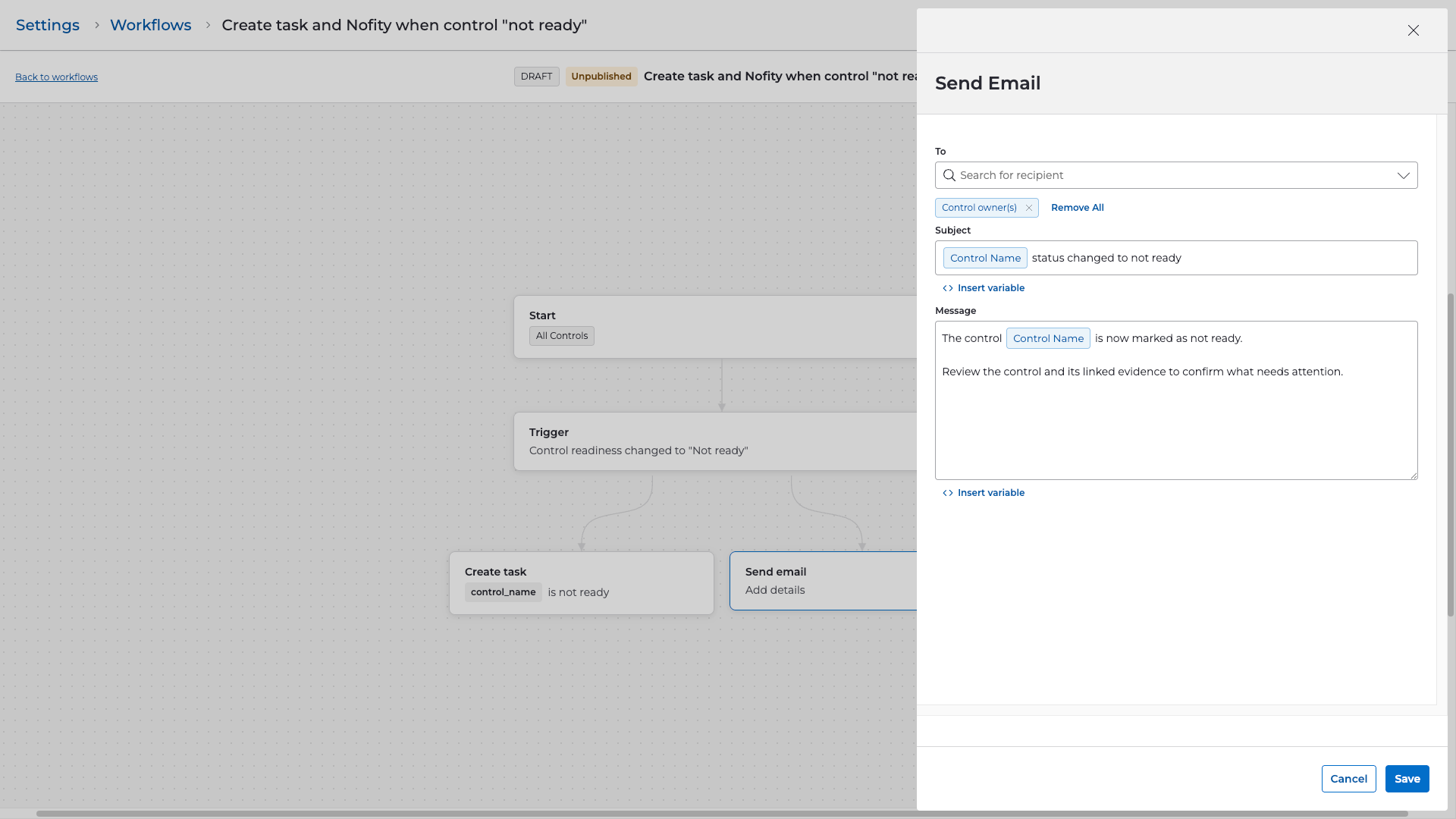
5. Review and Publish
-
Confirm the workflow configuration:
- Scope: All controls
- Trigger: Control readiness changed to Not Ready
- Steps: Create task and Send notification
- Select Publish to activate the workflow.
- Or save as Draft to review with stakeholders.
Validation & Testing
To ensure proper operation:
- Select a test control and manually update it to "Not Ready."
- Go to Settings → Workflows → Run History to verify the workflow executed.
-
Confirm:
- A task was created and assigned correctly.
- The notification was successfully delivered.
- Adjust message content or recipients as needed.