Create Task for Control Approvers to Review Newly Linked Evidence
Objective
Automatically create a task for control approvers whenever new evidence is linked to a control. This workflow ensures approvers are immediately aware of new documentation impacting their controls, enabling timely review, approval, or follow-up actions to maintain compliance and audit readiness.
Prerequisites
Before creating this workflow, ensure:
- You have Admin or Workspace Manager permissions.
- Your organization uses control approvals and has designated approvers.
-
Notification and task assignment roles are set up correctly:
- Email (always available)
- Slack message (Slack integration required)
- Microsoft Teams message (Teams integration required)
Workflow Overview
This workflow executes when:
- Object Type: Evidence
- Scope: Selected evidence or all manual evidence
- Trigger Event: Evidence linked to a control
-
Actions:
- Create a task assigned to control approvers
- (Optional) Notify additional recipients
Step-by-Step Configuration
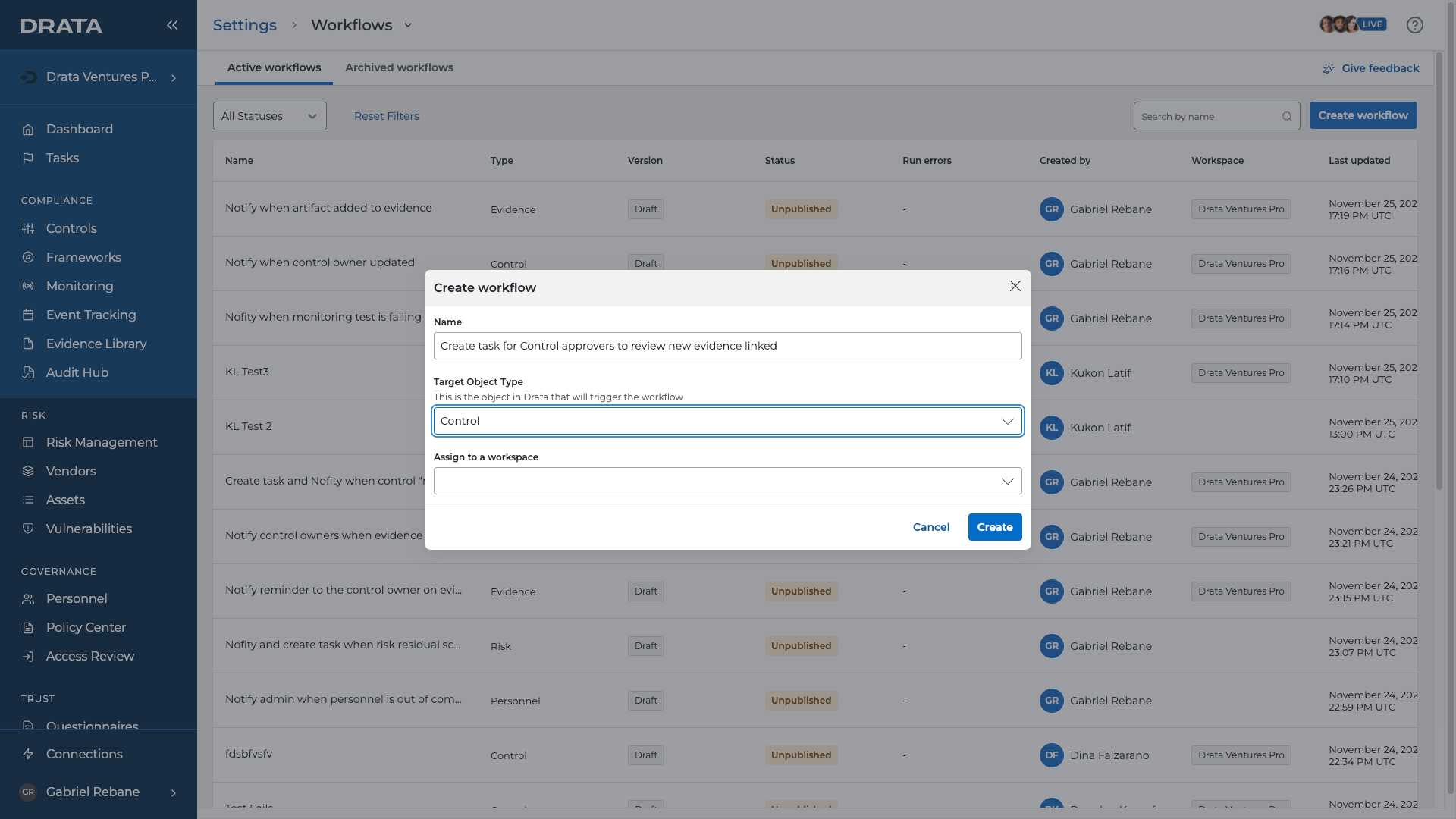
1. Create the Workflow
- Navigate to Settings → Workflows .
- Select Create Workflow .
-
Configure:
-
Name:
Create task for control approvers to review newly linked evidence -
Object Type:
Evidence
-
Name:
2. Define the Workflow Scope
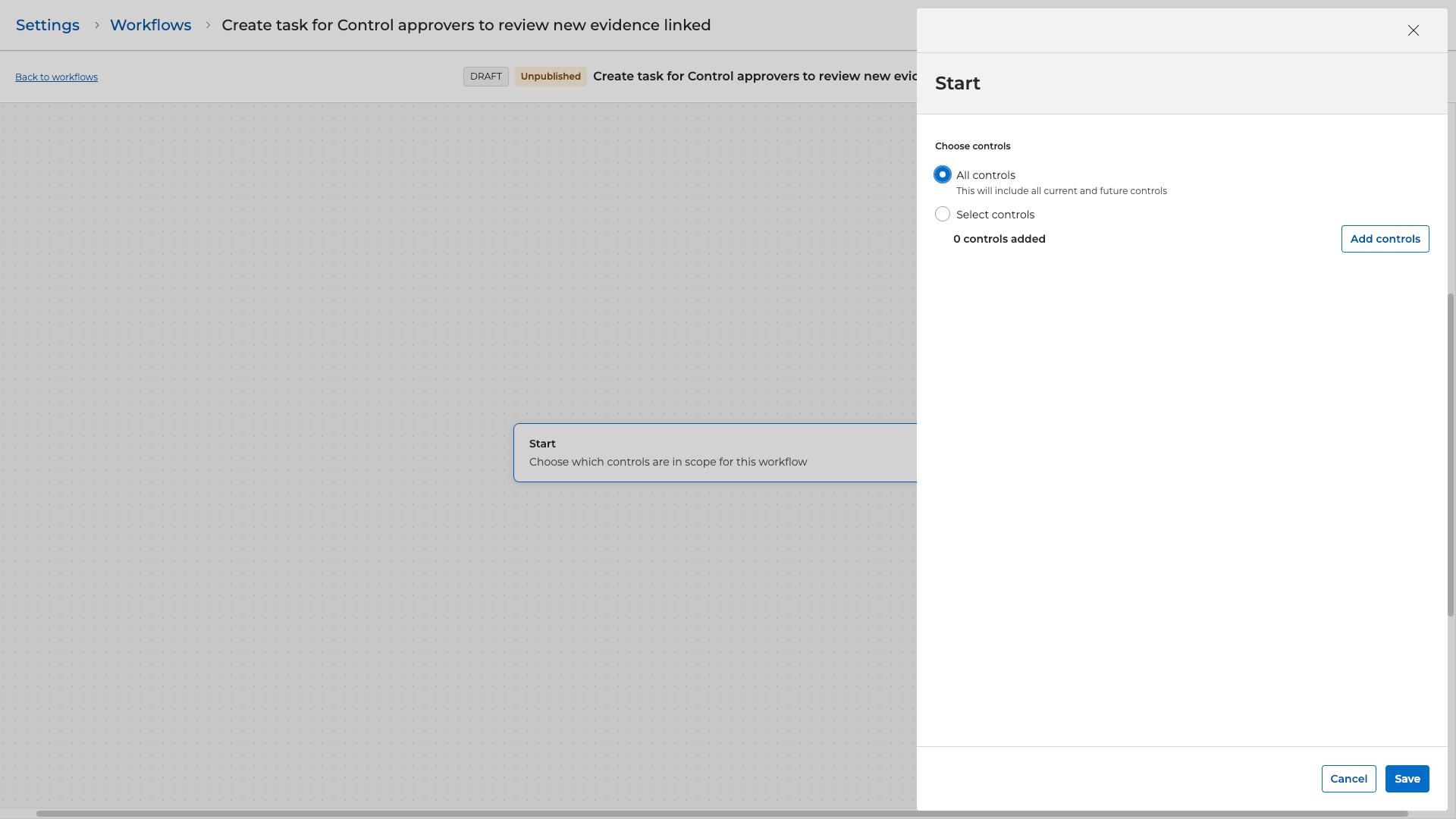
-
Under
Start
, choose one of:
- All manual evidence
- Source of evidence
- Framework evidence
- Selected evidence
- Select Continue .
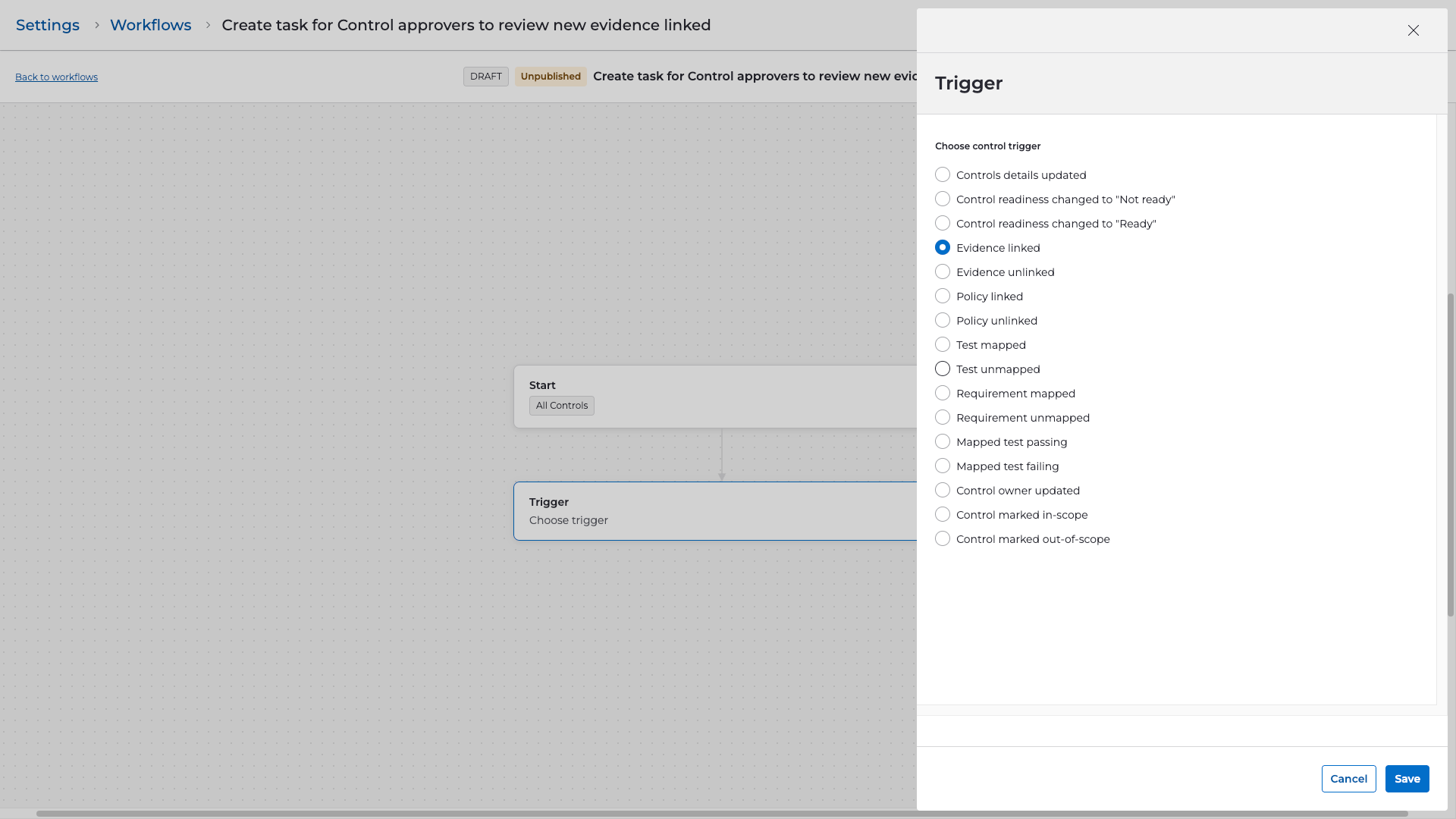
3. Select the Trigger
- Choose Evidence linked to a control as the trigger.
- This fires whenever evidence becomes associated with a control.
4. Add Steps
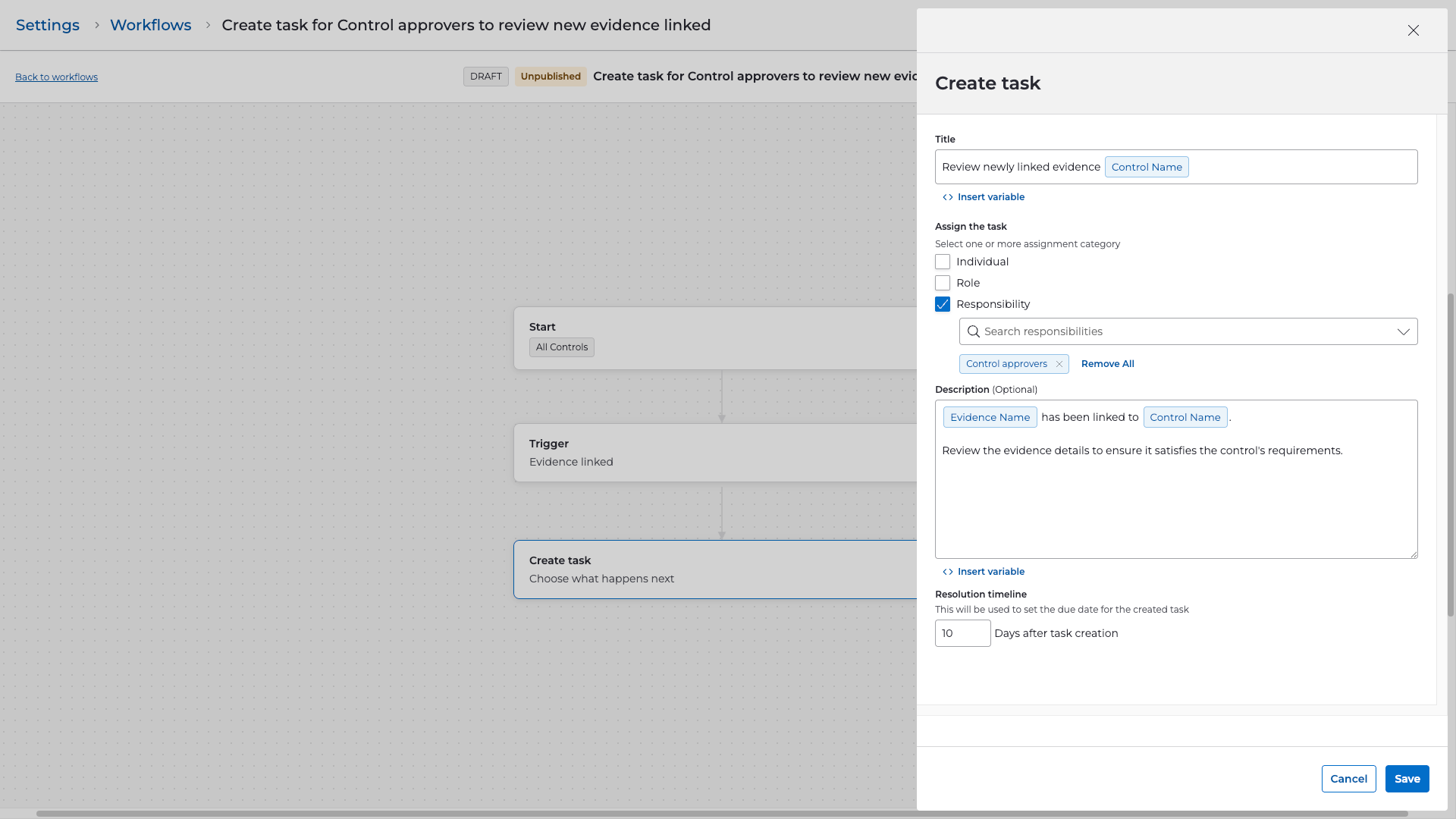
Create Task
- Add a Create task step.
-
Configure the task details:
-
Title:
Review newly linked evidence for {{evidence_linked_control_name}} - Description:
New evidence {{evidence_name}} has been linked to control {{evidence_linked_control_name}}. Please review the attached evidence and confirm accuracy, completeness, and relevance.-
Assigned To:
- Control Approvers (recommended)
- Or a specific user/role (Admin, Compliance Team)
- Due Date: Set a reasonable follow-up window (e.g., 3–5 days from task creation)
-
Title:
5. Review and Publish
-
Review:
- Scope
- Trigger
- Task configuration
- Optional notifications
- Select Publish to activate the workflow.
- Or save as Draft if additional stakeholder review is required.
Validation & Testing
To verify correct operation:
- Choose a test evidence item and link it to a control.
- Navigate to Settings → Workflows → Run History to confirm the workflow executed.
-
Check that:
- A task was created and assigned to control approvers .
- Any configured notifications were sent successfully.
- Adjust task details, assignment, or messaging as needed.